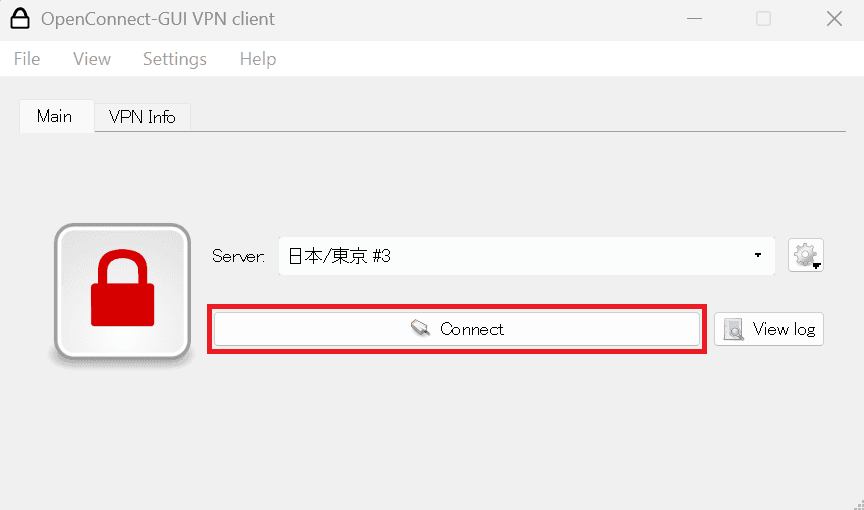
How to Check and Change the Connection Destination (Server Address) for MillenVPN Native OpenConnect
Here's how to view and change your existing connection settings (connection server address) in MillenVPN Native OpenConnect.
If you "can no longer connect to the server you've been using" or "want to change the connection to a different server," please follow the steps below to change the connection.
iOS
How to Check Your Current Connection
- Launch "Cisco Secure Client" (listed as "AnyConnect" on the home screen) and tap "Connect."
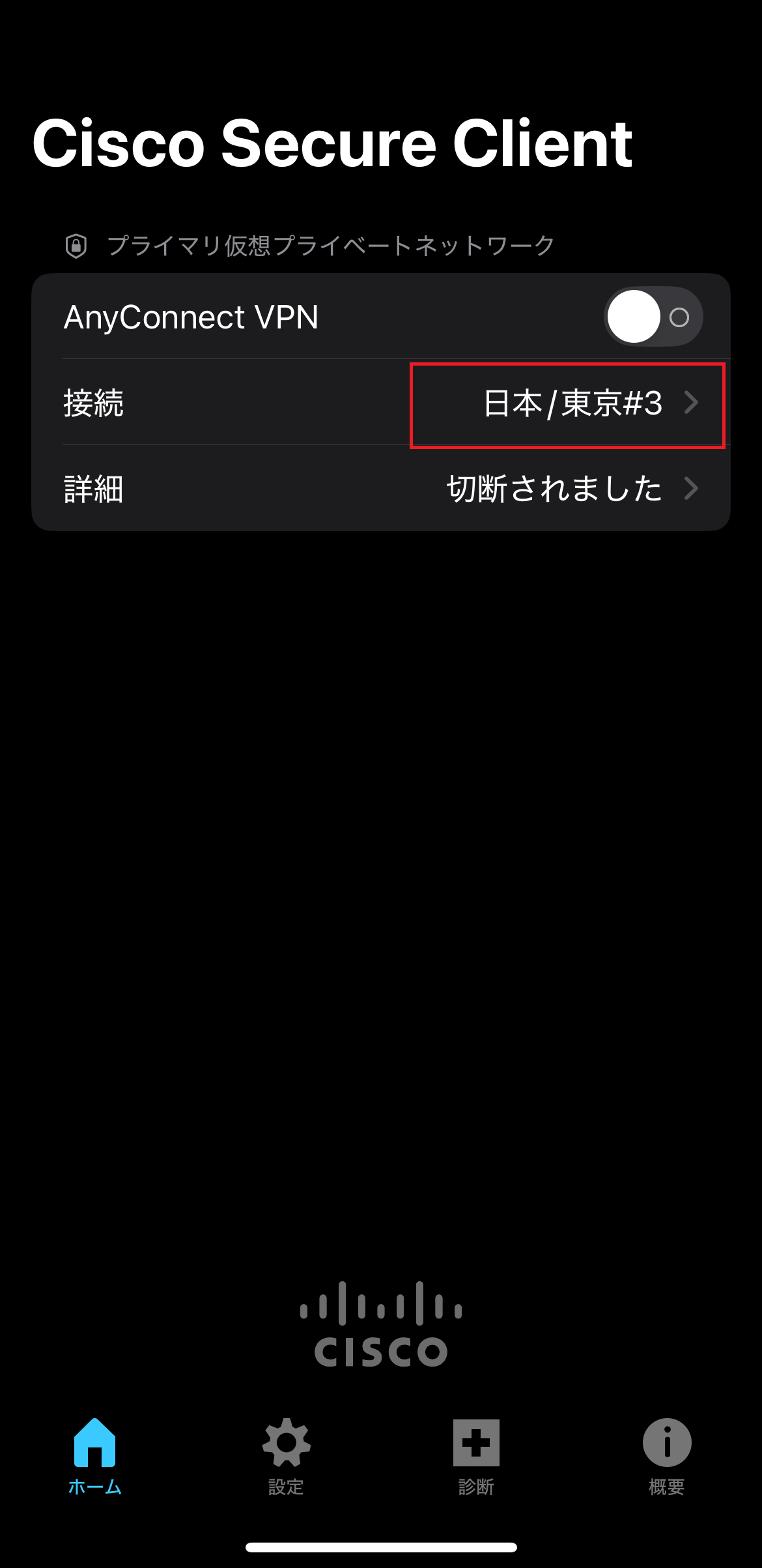
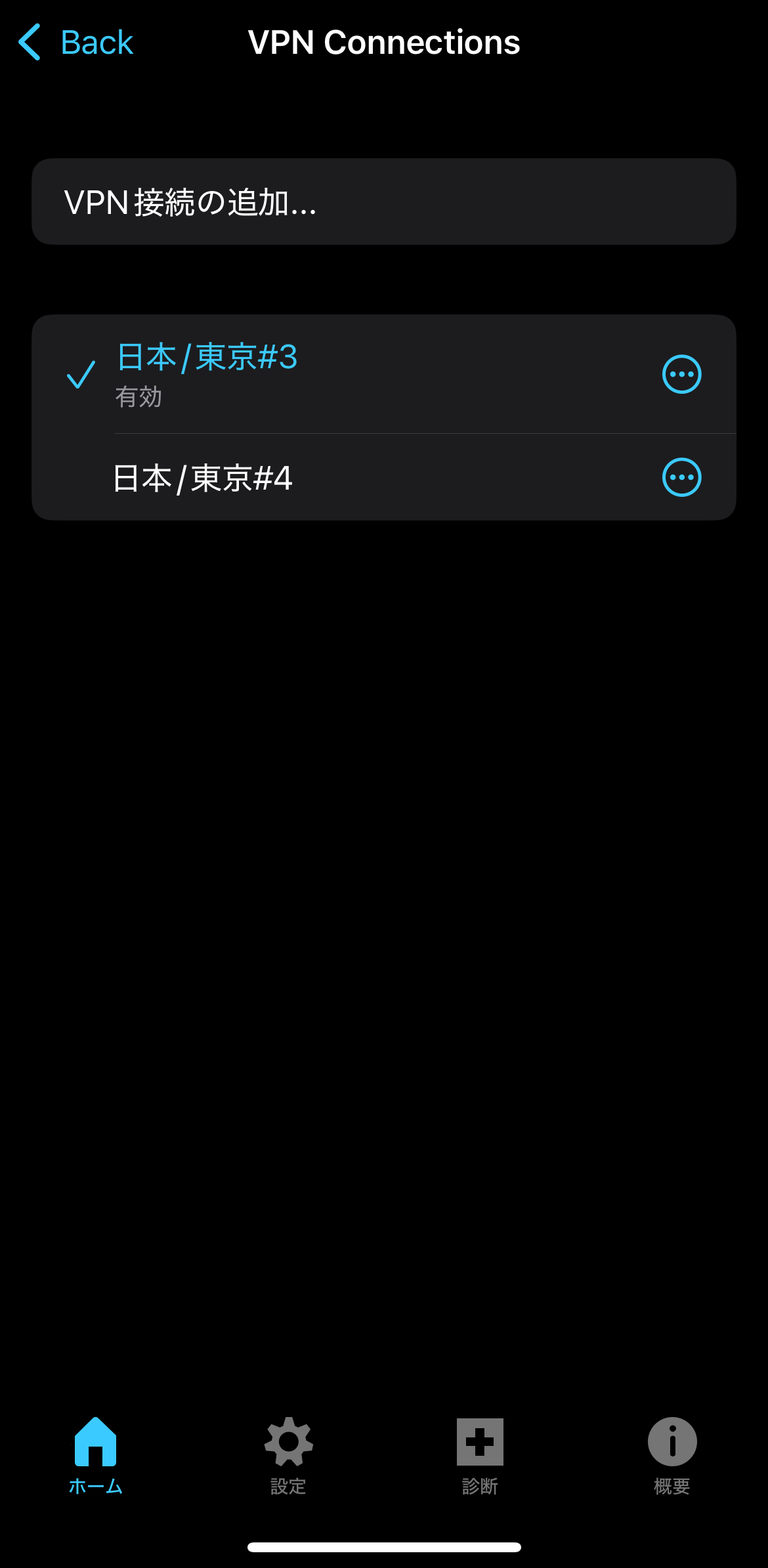
- A list of registered connection details will be displayed.
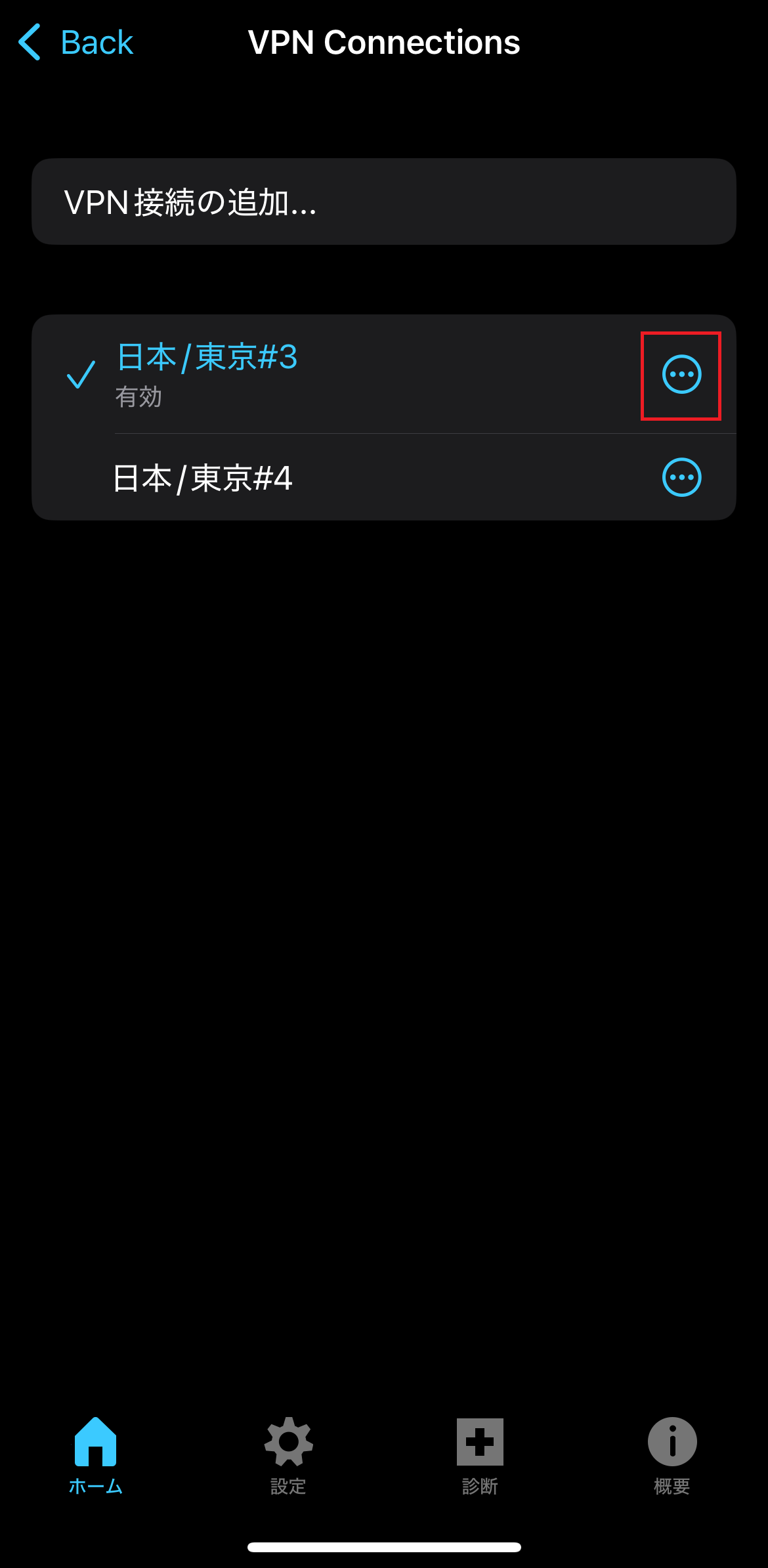
- Tap the "…" on the right side of the item you want to check.
- The "Server Address" field displays the address of the server you are currently connected to.
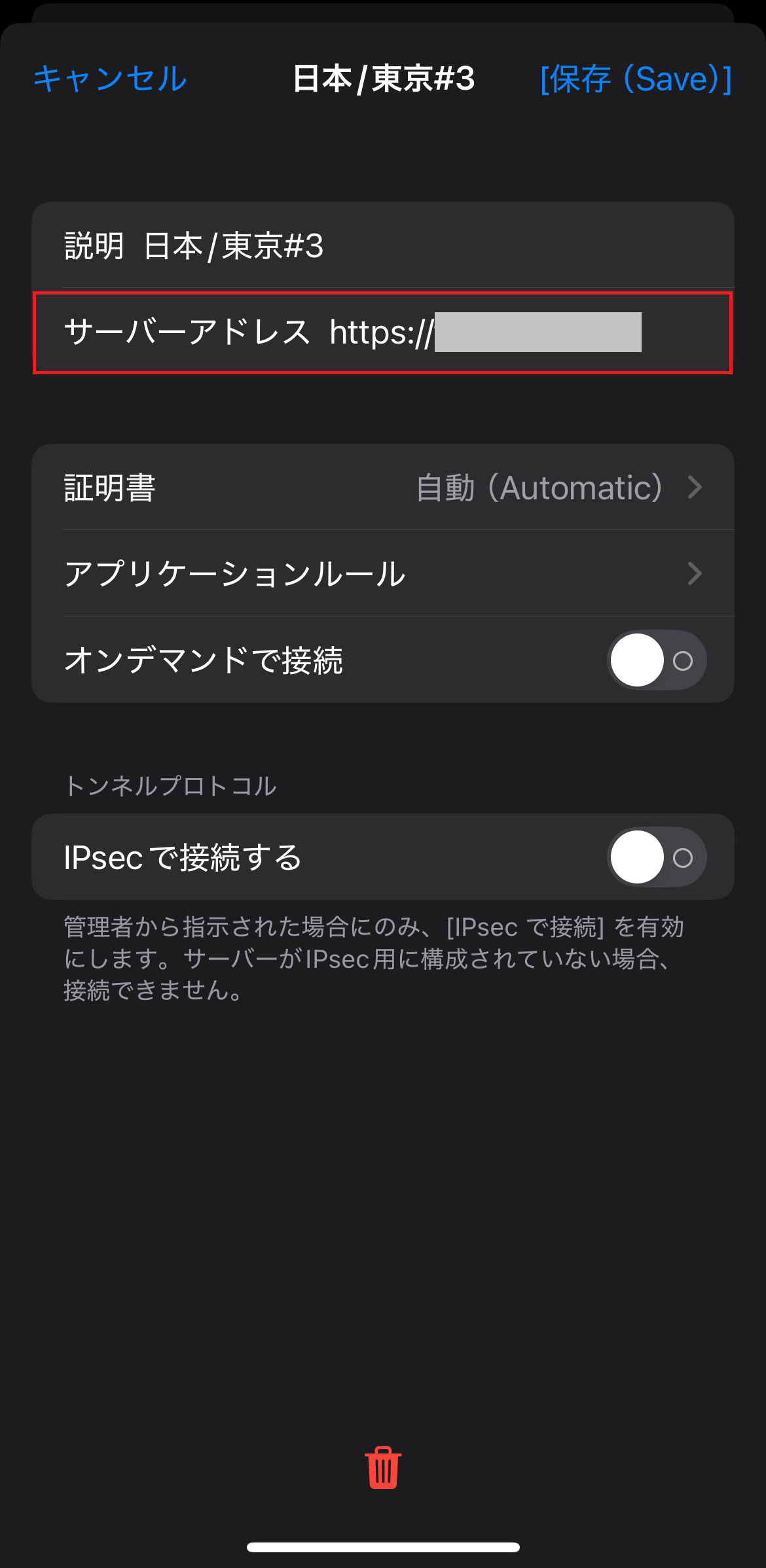
How to Change the Connection Destination
「How to Check Your Current ConnectionYou can change the connection destination from the edit screen opened via "".
If you haven't opened the edit screen yet, please follow steps 1 through 4 above to open it.
The server addresses currently available for connection are:「How to check user name, password, and server address to connect to」Please check there.
- Replace the information entered in the "Server Address" field with the address of the server you want to connect to, then tap "[Save]" in the upper-right corner.
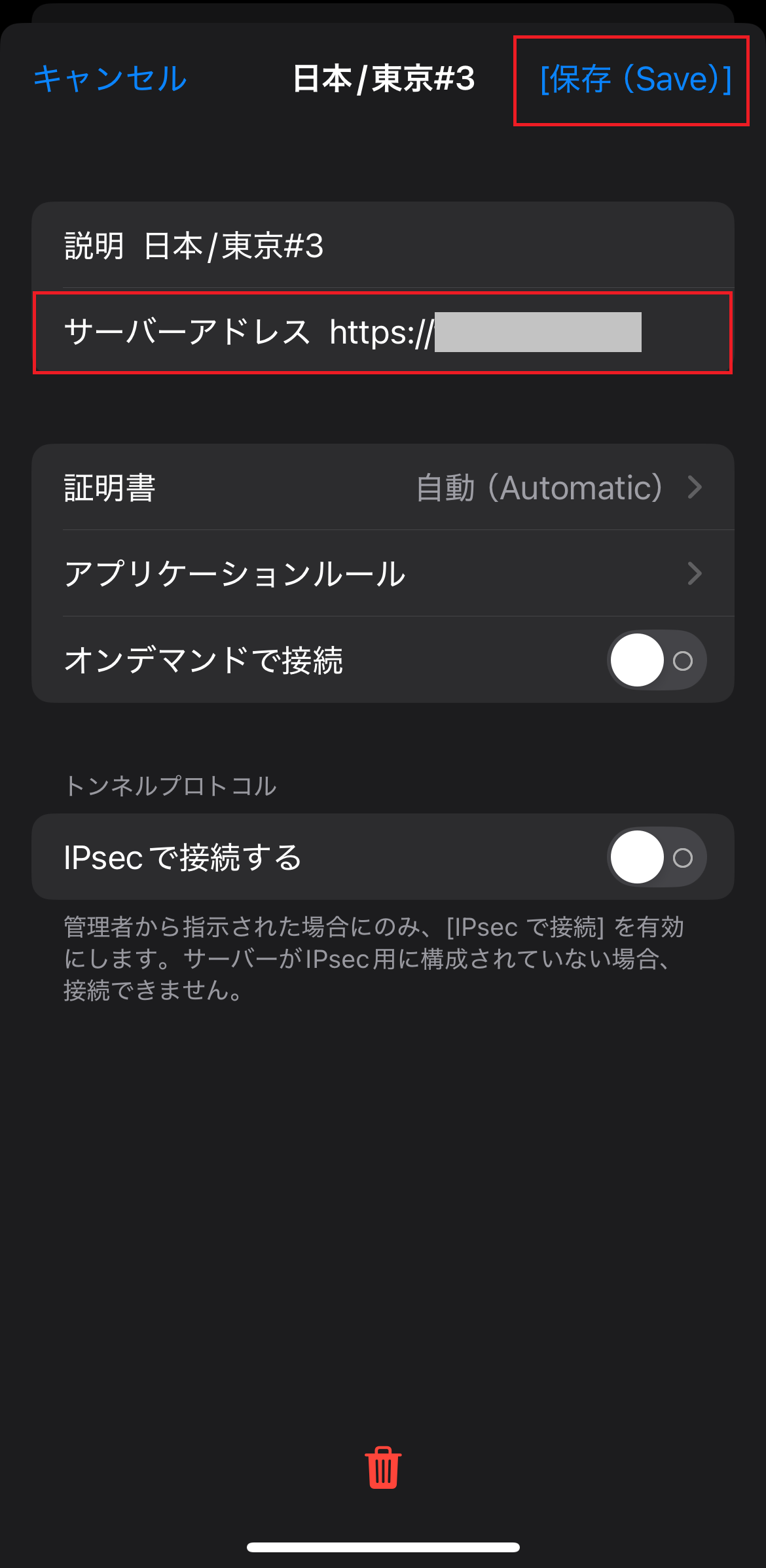
- After making the changes, return to the Home screen and tap the button on the right side of AnyConnect VPN as usual to try connecting.
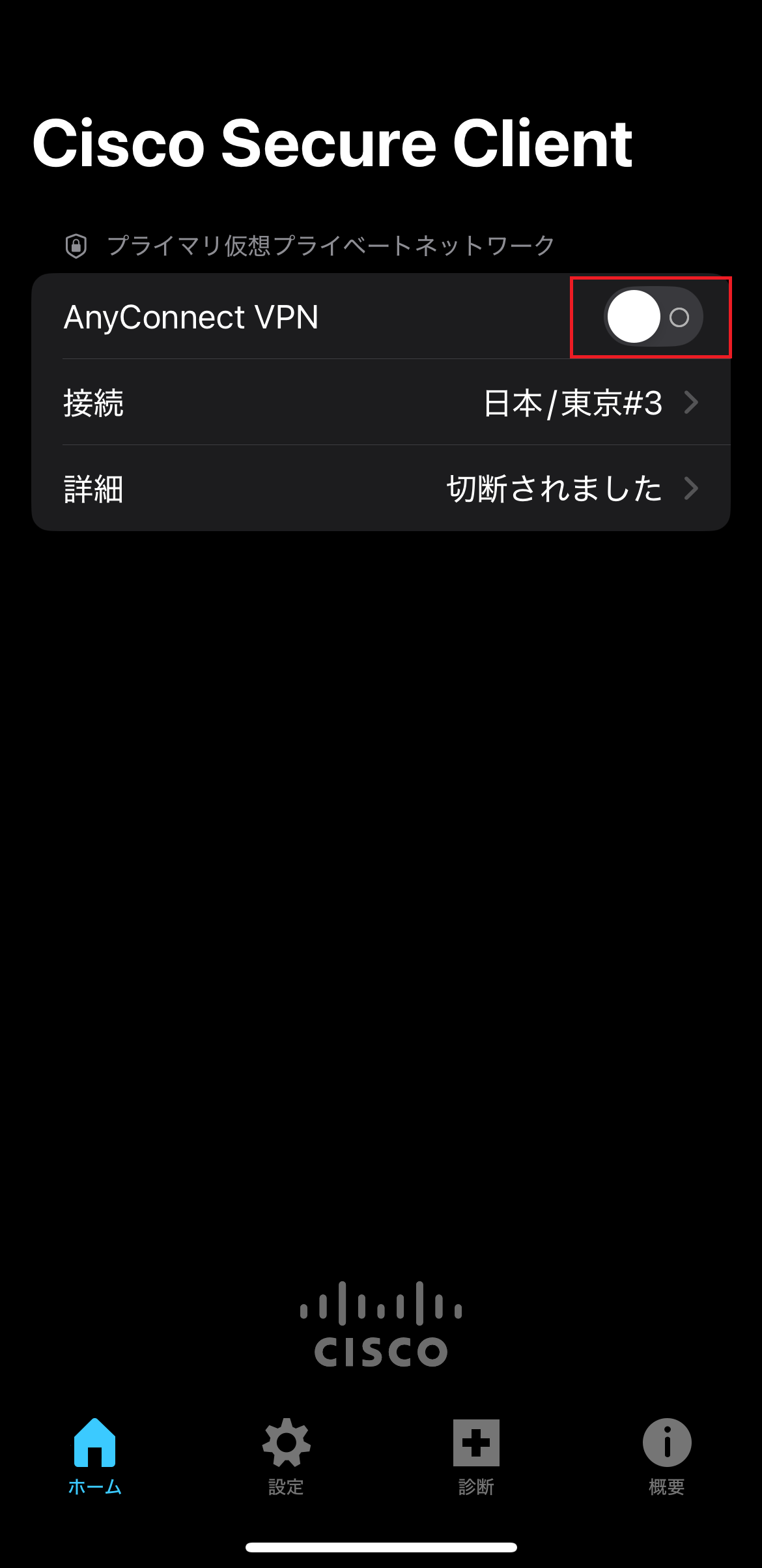
Android
How to Check Your Current Connection
- Launch "Cisco Secure Client" (listed as "AnyConnect" on the home screen) and tap "Connect."
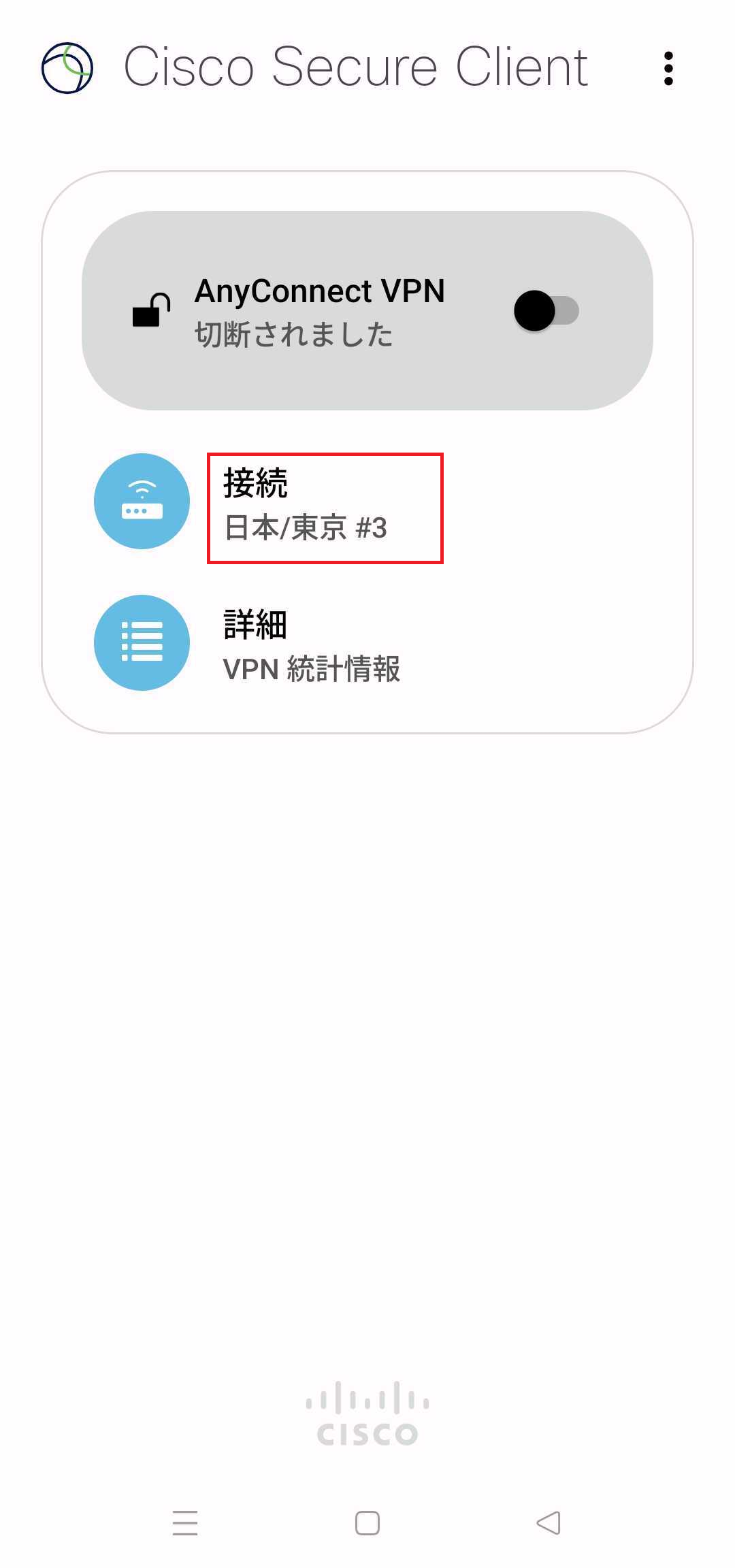
- A list of registered connection details will be displayed.
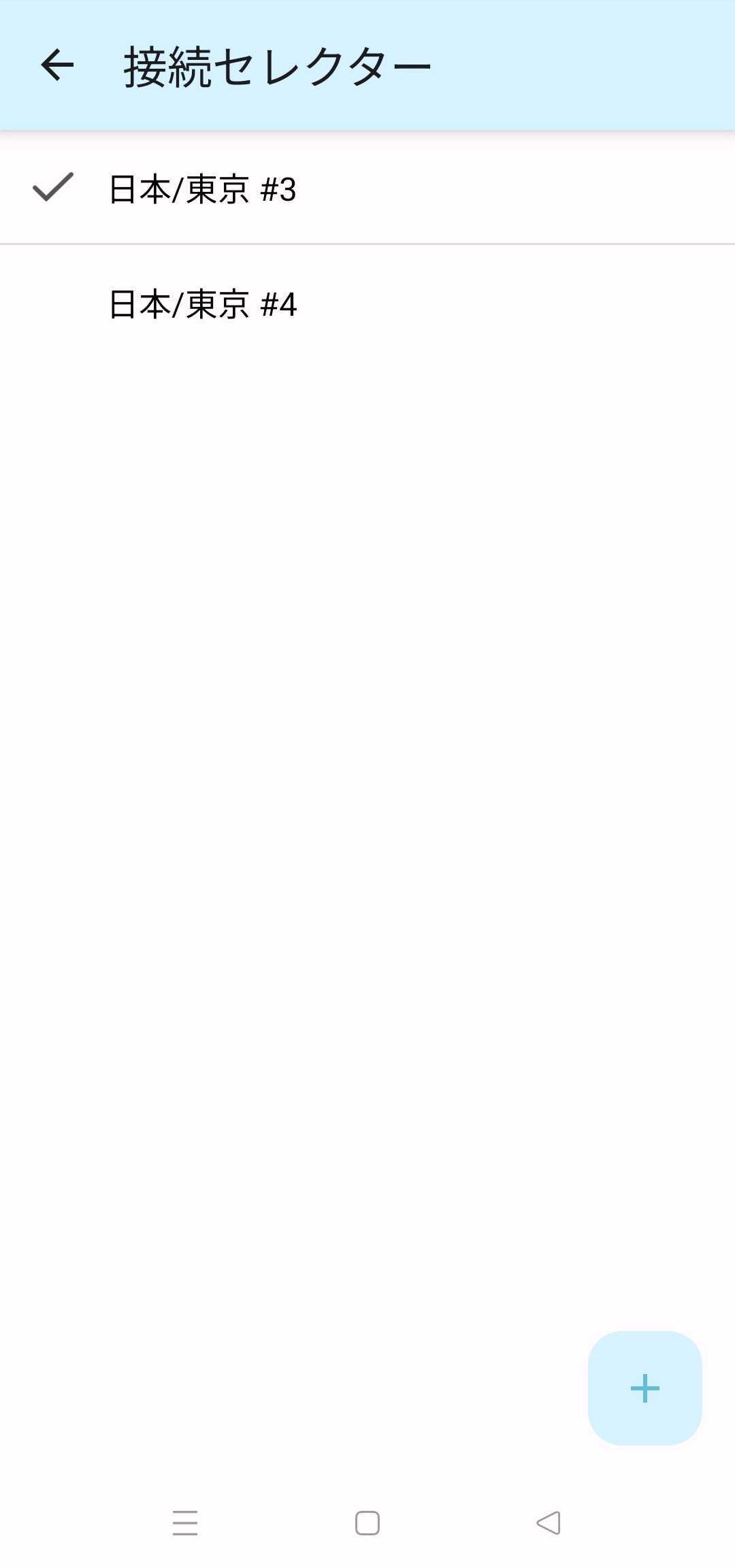
- What you want to checkLong pressThen, tap "Edit Connection."
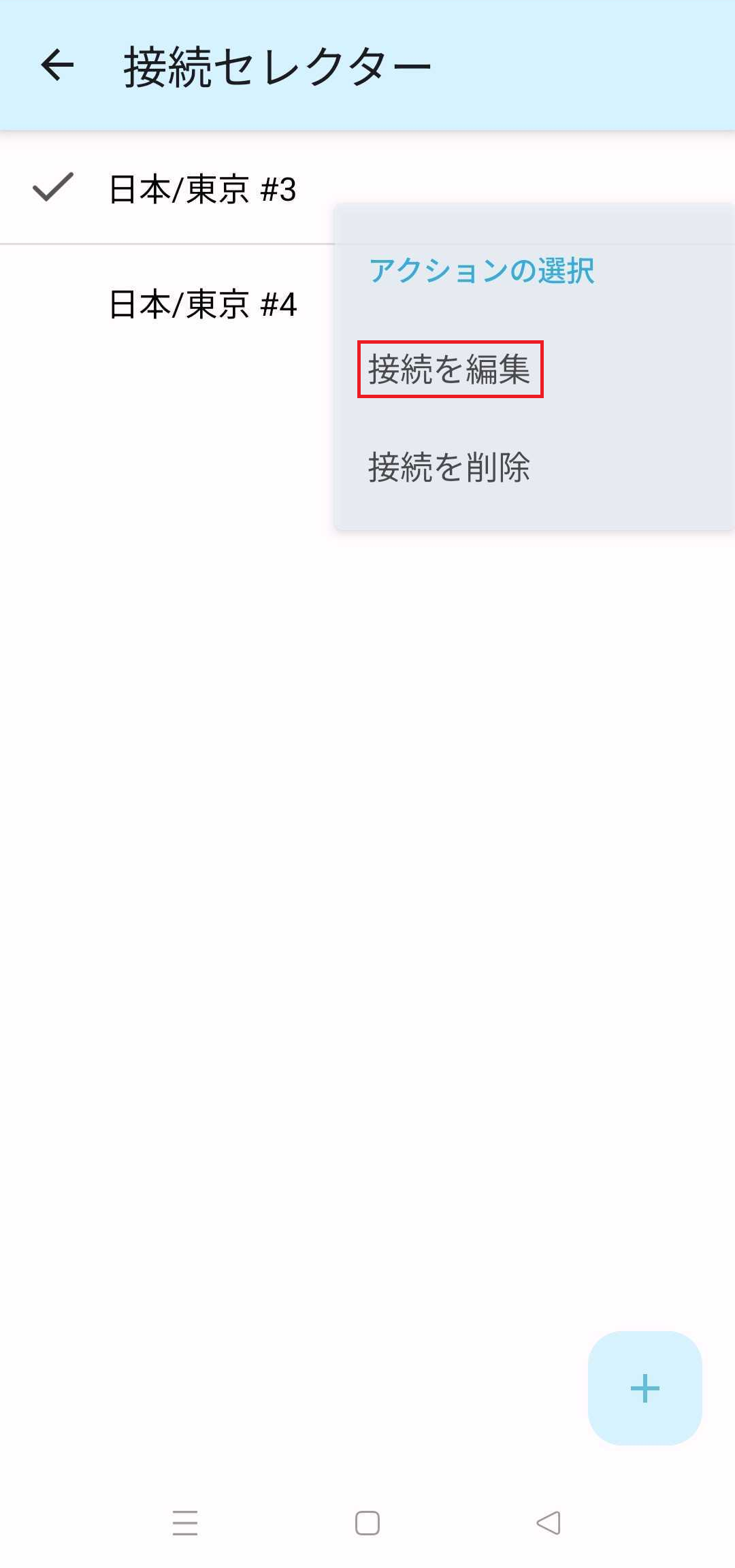
- The "Server Address" field displays the address of the server you are currently connected to.
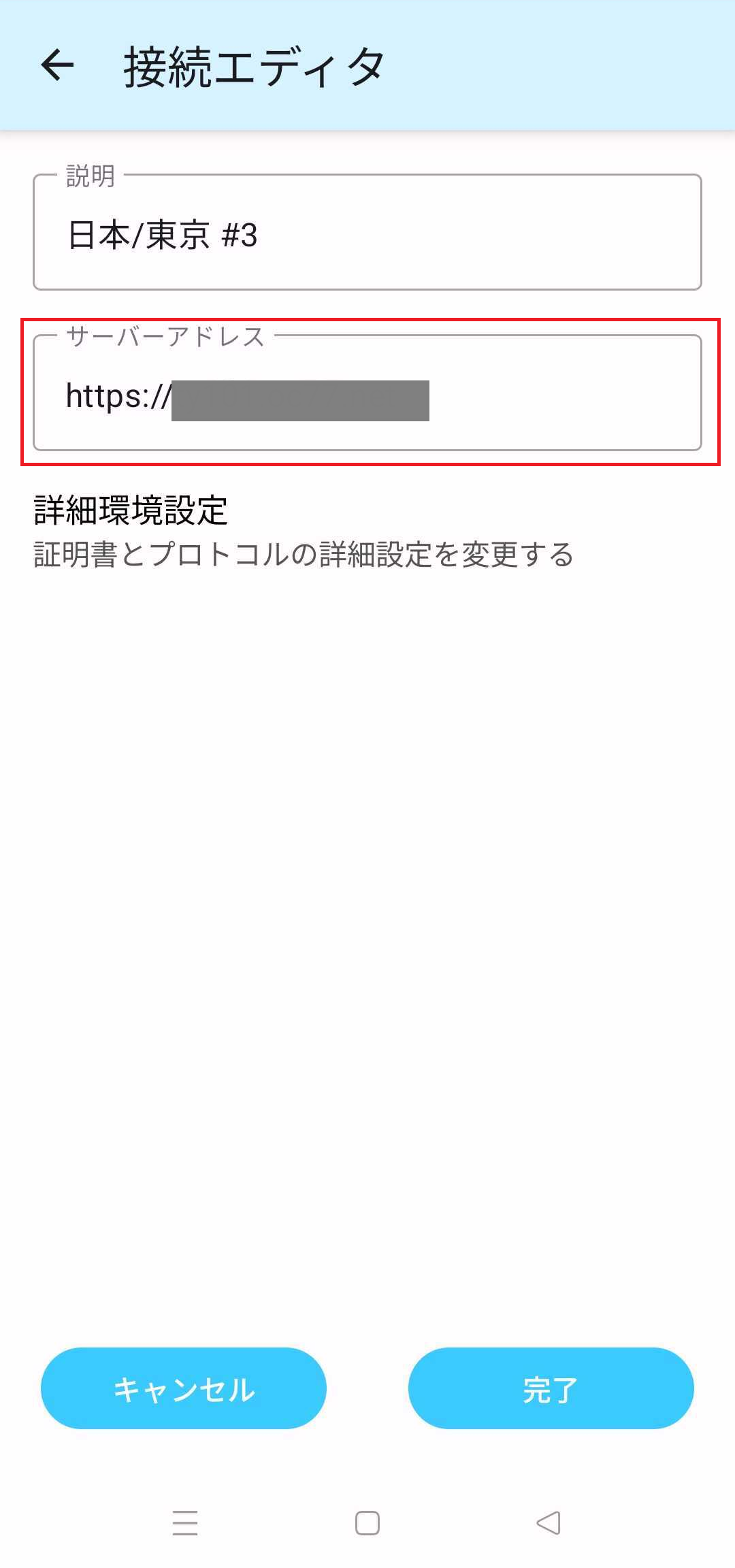
How to Change the Connection Destination
「How to Check Your Current ConnectionYou can change the connection destination from the edit screen opened via "".
If you haven't opened the edit screen yet, please follow steps 1 through 4 above to open it.
The server addresses currently available for connection are:「How to check user name, password, and server address to connect to」Please check there.
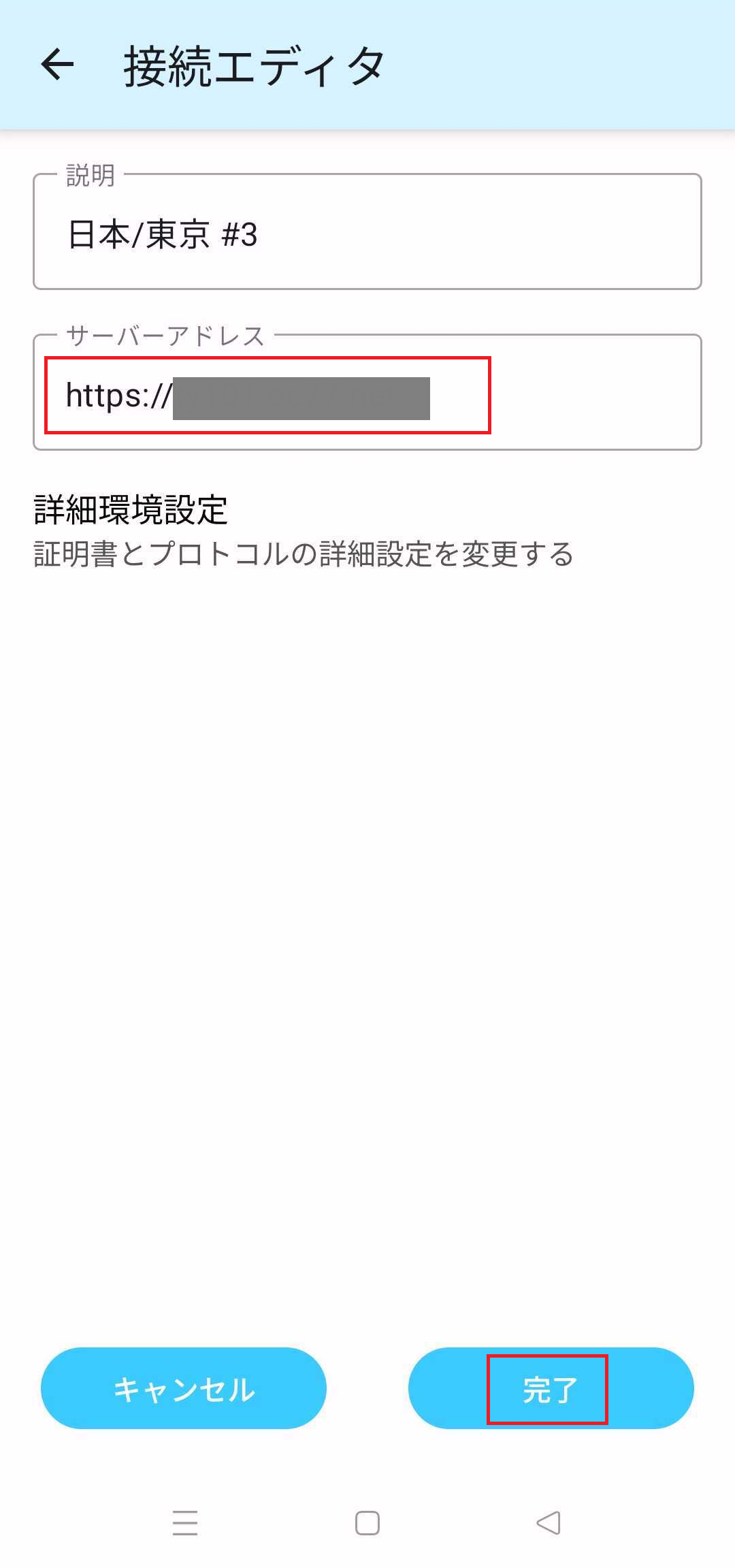
- Replace the information entered in the "Server Address" field with the address of the server you want to connect to, then tap "Done."
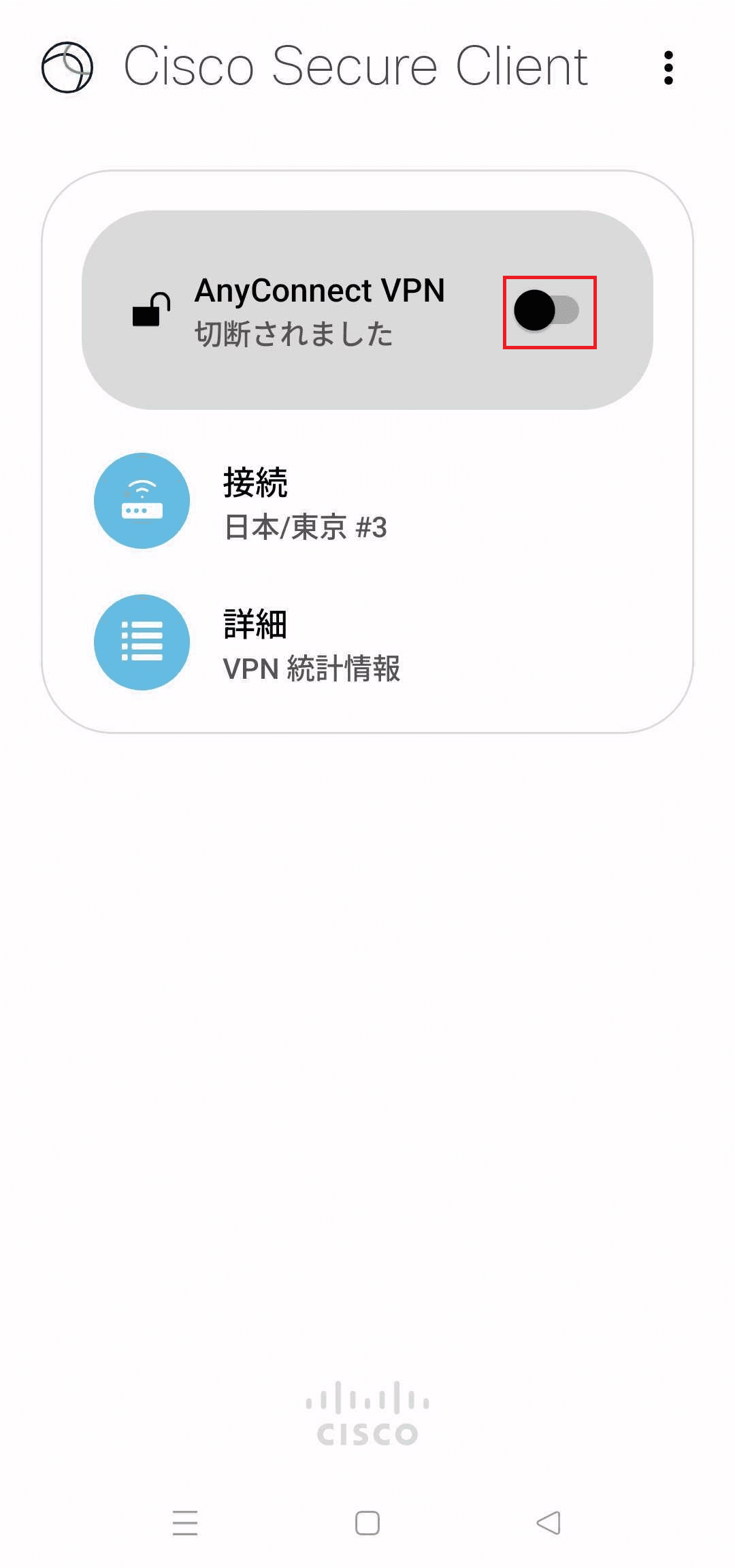
- After making the changes, return to the Home screen and tap the button on the right side of AnyConnect VPN as usual to try connecting.
Windows / Mac
How to Check Your Current Connection
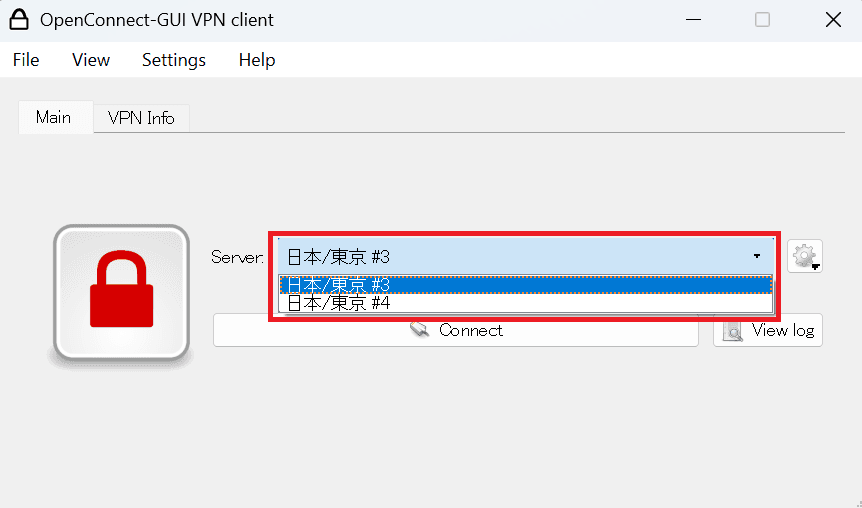
- Launch OpenConnect-GUI, and from the drop-down menu (▼) displaying the names you assigned during setup, select the one you want to check.
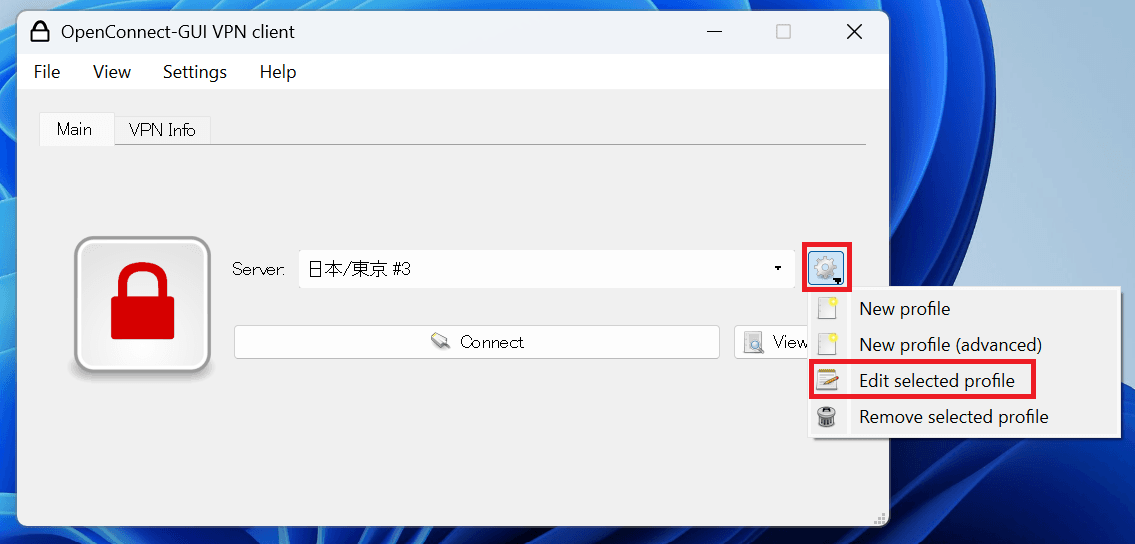
- Click the gear icon next to the drop-down menu and select "Edit Selected Profile."
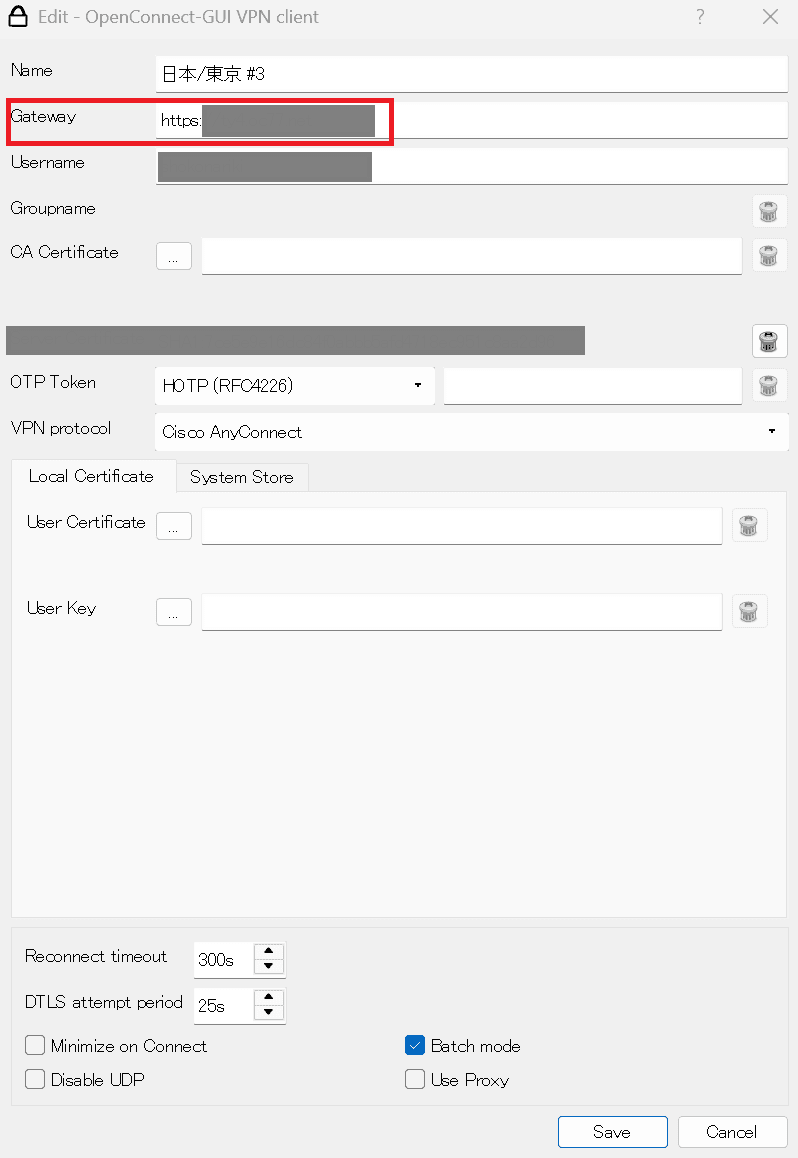
- The current server address is displayed in the "Gateway" field.
How to Change the Connection Destination
「How to Check Your Current ConnectionYou can change the connection destination from the edit screen opened via "".
If you haven't opened the edit screen yet, please follow steps 1 through 3 above to open it.
The server addresses currently available for connection are:「How to check user name, password, and server address to connect to」Please check there.
- Replace the information entered in the "Gateway" field with the address of the server you wish to connect to, and then click "Save."
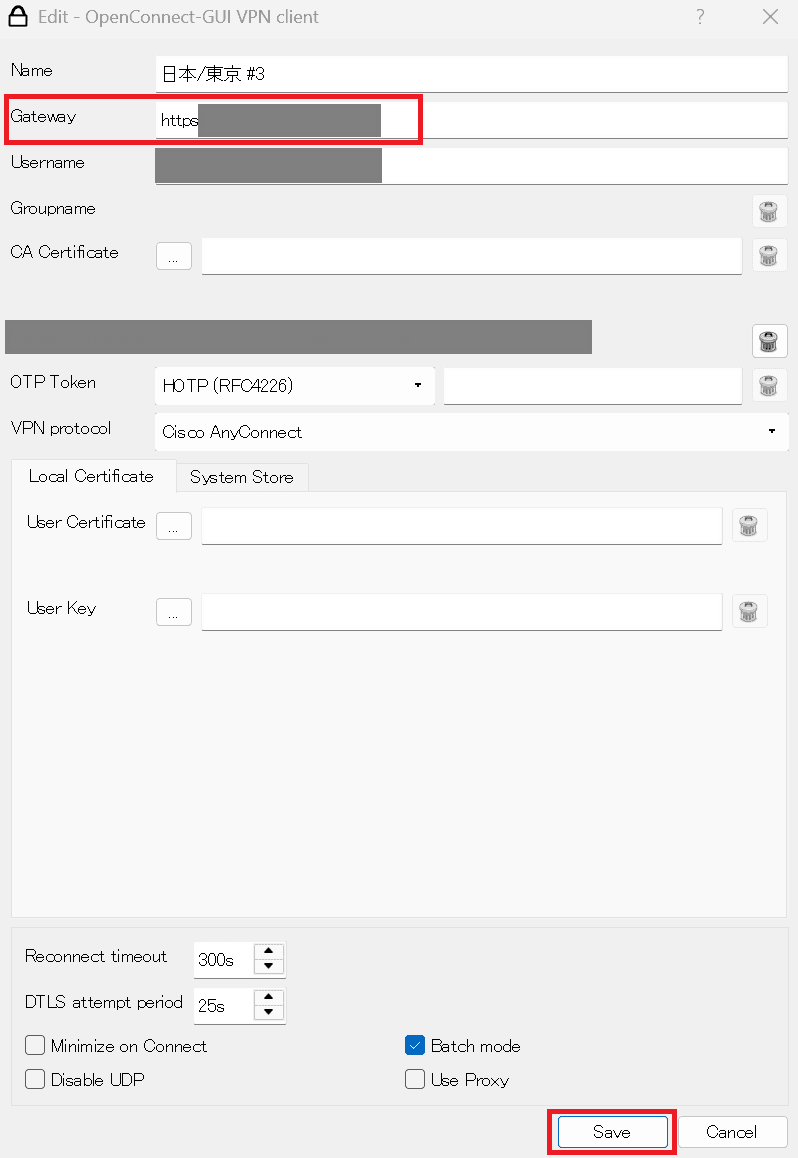
- After making the changes, please try connecting as usual by clicking the "Connect" button.