How to Use the Android App
How to Connect to a VPN
※How to Install the MillenVPN Android AppHereis posted on.
- Tap the MillenVPN app to open it.

- Please log in to the app.
As stated in the [Welcome to MillenVPN] email sent upon contract activation
・Username
・Password
Enter the above two items and tap Login.
※Login information for the appMy Pageis stated in.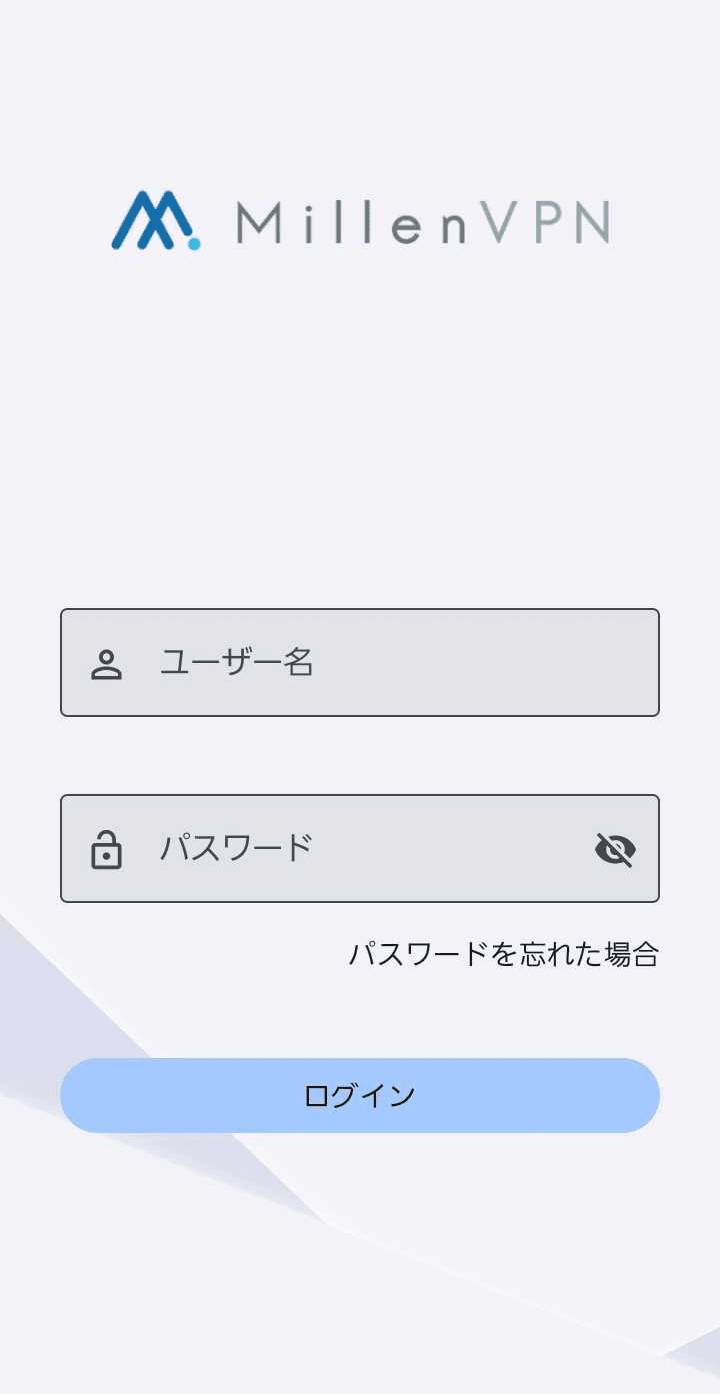
- Tap the [Connect] button when it appears.
By default, you will be connected to the "fastest server".
To change the connection destination, click the "Connection Destination" button at the bottom of the screen.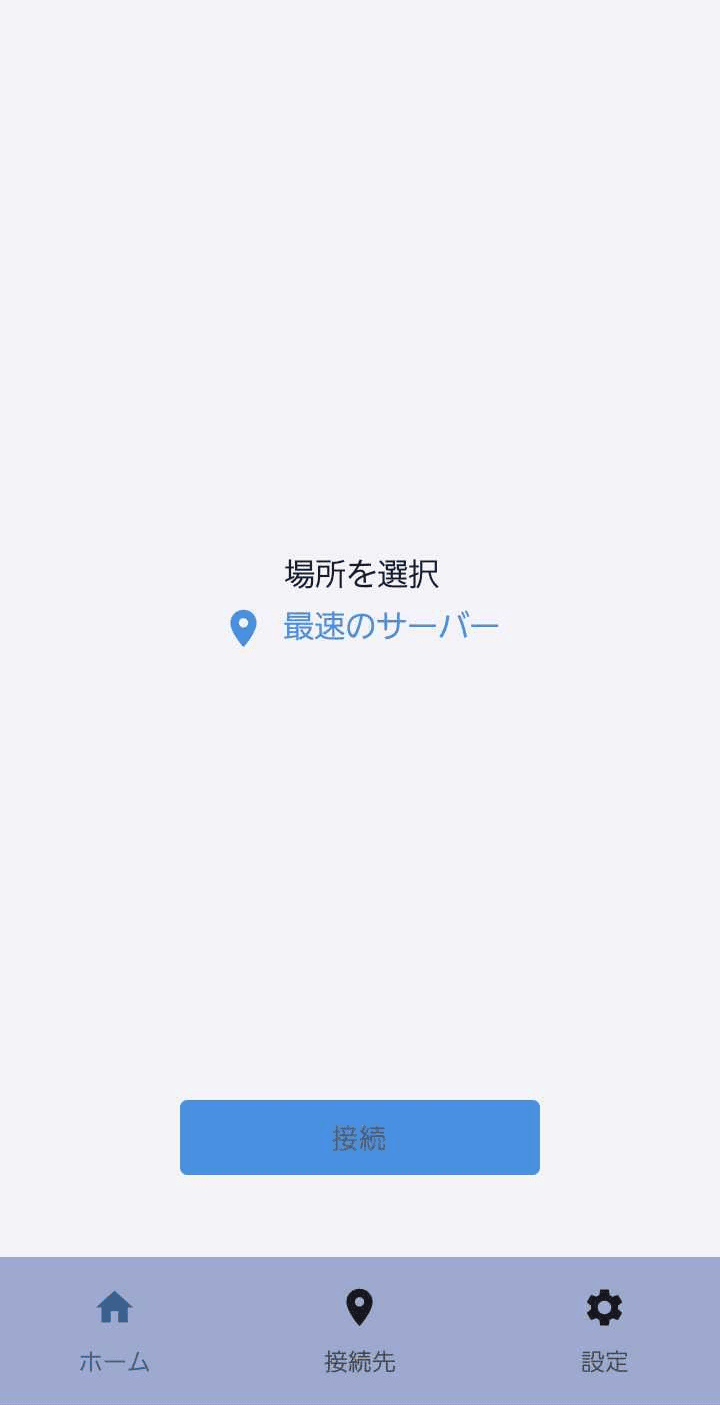
- Please approve the connection request.

- Once the connection is established, the destination IP address and the name of the server you connected to will be displayed.
A lock icon will appear at the top.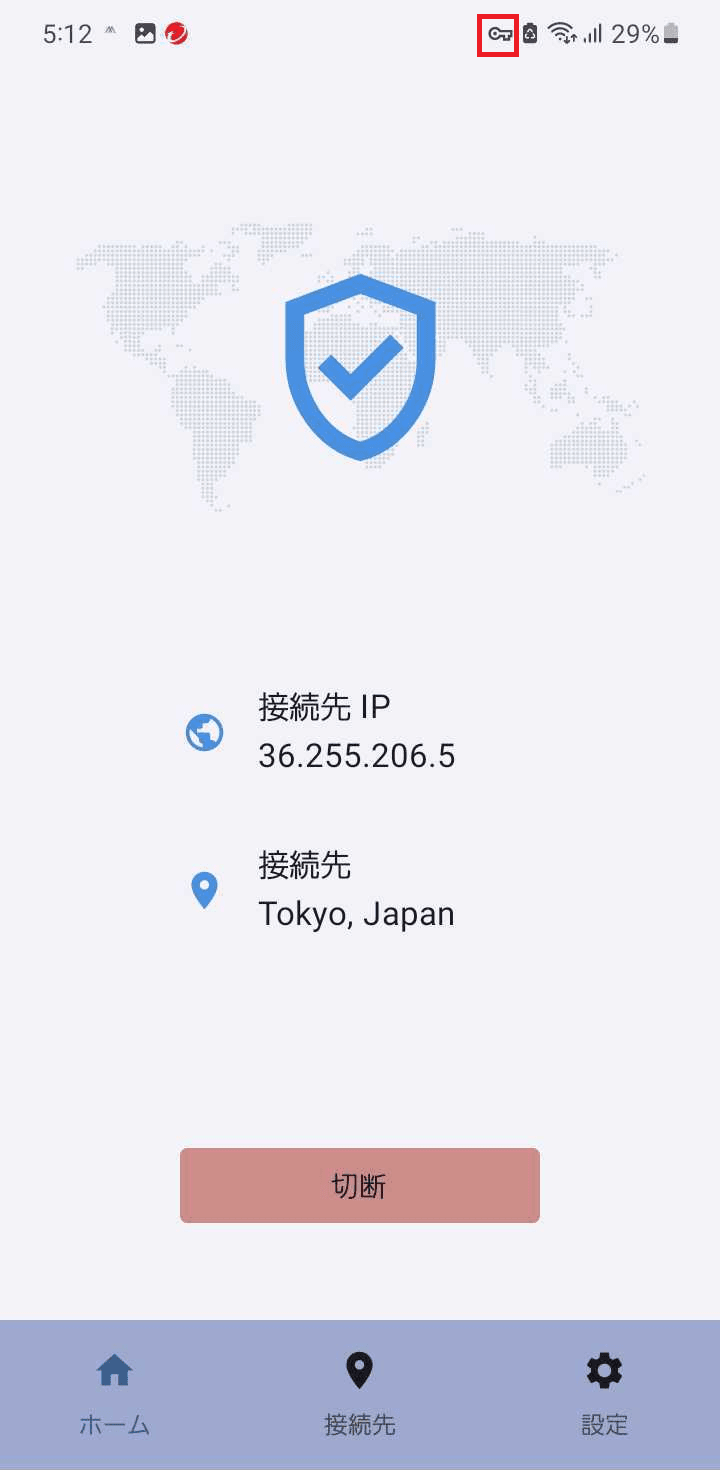
Settings
Click the Settings (gear icon) in the bottom-right menu of the app to access the settings screen.
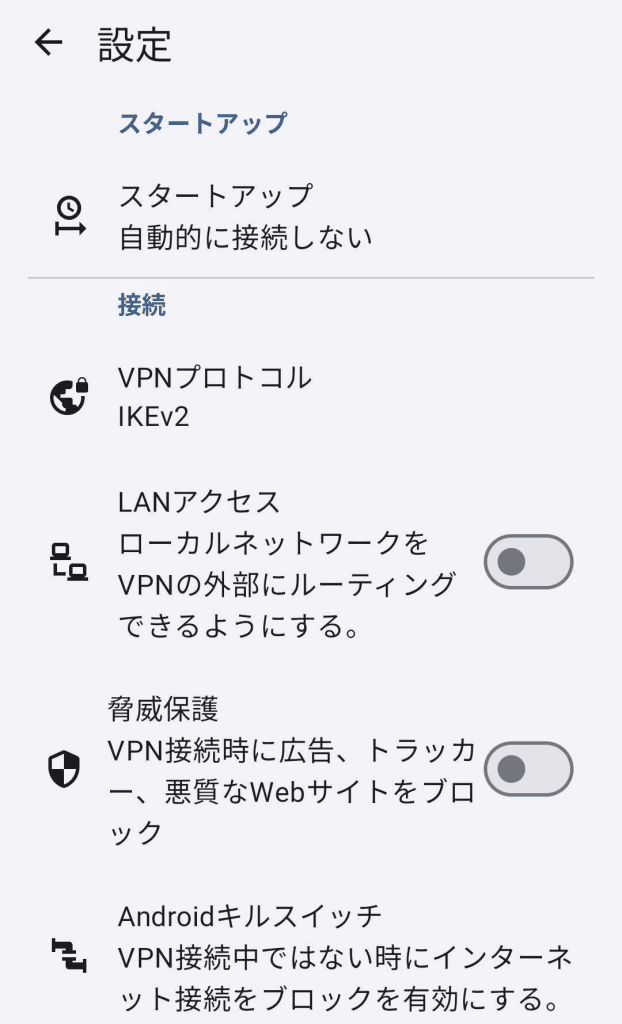
Startup
・Do not connect automatically (default setting)
⇒ The application will not establish a VPN connection upon launch.
・Connect to the last server you connected to
⇒When the application launches, it connects to the VPN server you last connected to.
・Connect to the fastest server
⇒Upon application launch, it automatically selects the server with the fastest connection and establishes a VPN connection.
Connection
VPN Protocol
・OpenVPN
⇒Provides the highest level of security.
Due to enhanced security, it may be slower than other protocols.
Even when other protocols cannot be used due to firewall restrictions,
OpenVPN may be available.
※ To useOpenVPN TAP AdapterInstallation of [software name] is required.
・IKEv2 (Recommended setting)
⇒ It provides high stability and security with an extremely fast protocol.
This feature may not be available on some platforms.
・WireGuard
⇒Provides extremely fast VPN service.
This feature is unavailable on networks where UDP is not supported.
LAN Access
⇒ By enabling this feature, you can exclude only local communication with other devices on the same Wi-Fi network from the VPN, effectively allowing them to connect directly.
Threat Protection
⇒ When enabled, this feature blocks ads, trackers, and malicious websites while you're connected to the VPN.
Android Kill Switch
⇒ Enabling this feature prevents your device from communicating using its real IP address if the VPN connection is lost.
General
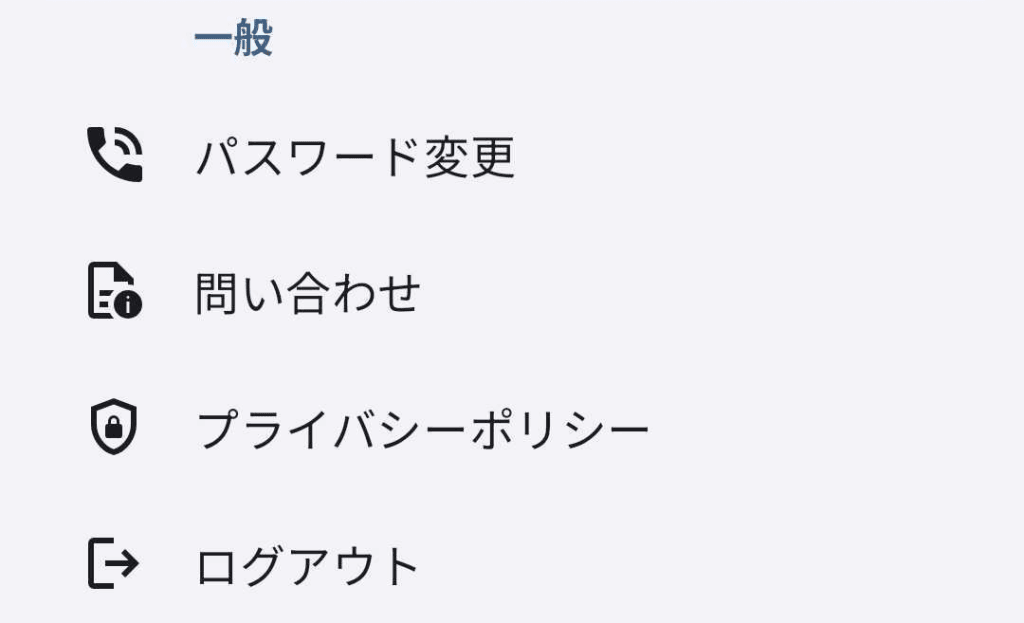
Inquiries
⇒You can contact MillenVPN Support.
Privacy Policy
⇒You can review the MillenVPN service's privacy policy.
Logout
⇒ Log out of the app.
Additional Information
The "Scramble" setting is available only when "OpenVPN" is selected as the VPN protocol.
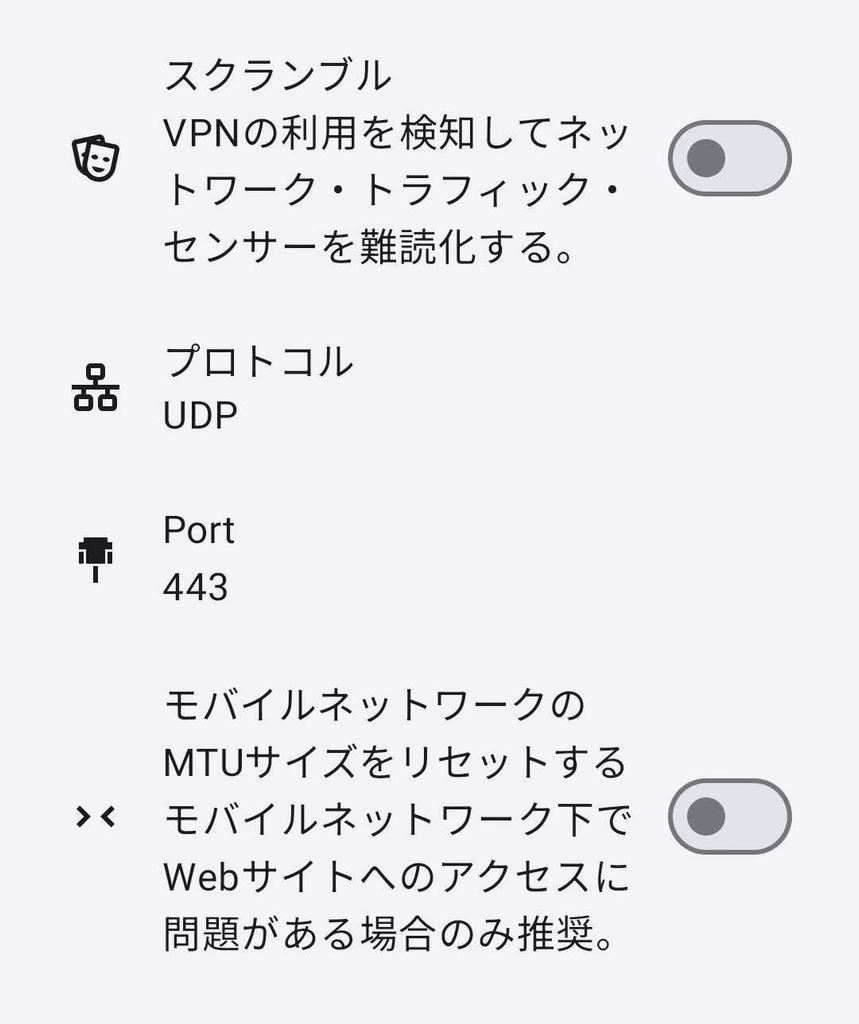
Scramble
⇒Enabling this feature allows you to bypass network monitoring systems that attempt to detect and block VPN usage.