How to Use Windows Apps
How to Log In to the VPN App
Double-click the MillenVPN app on your desktop to open it.
As stated in the [Welcome to MillenVPN] email sent upon contract activation
・Username
・Password
Please enter the two items above and click Login.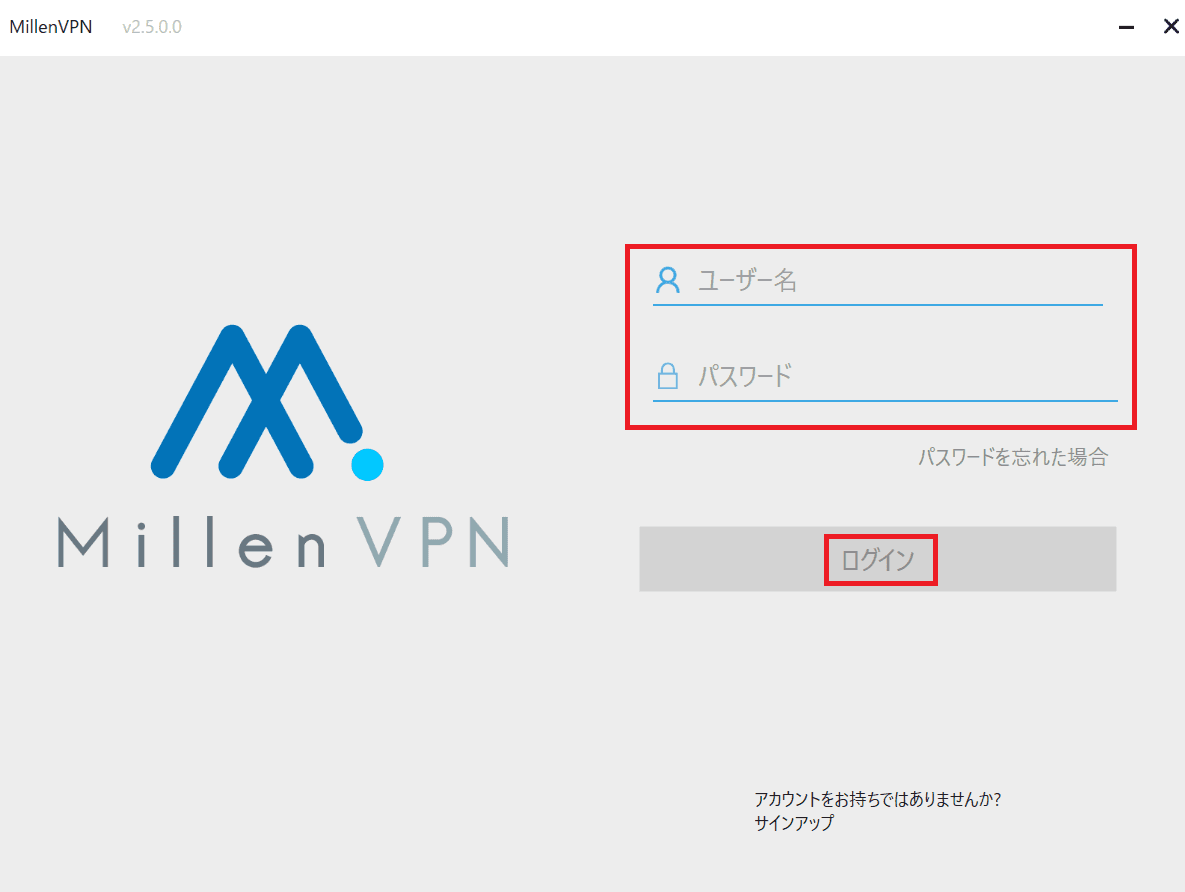
How to Connect to a VPN
Select the country you wish to connect to from the list of countries, then click the "Connect" button.
*When you select the optimal server, the country with the fastest connection speed will be chosen automatically.
Favorite function
If you click on the star to the left of a server, the corresponding server will appear at the top the next time you open the server list.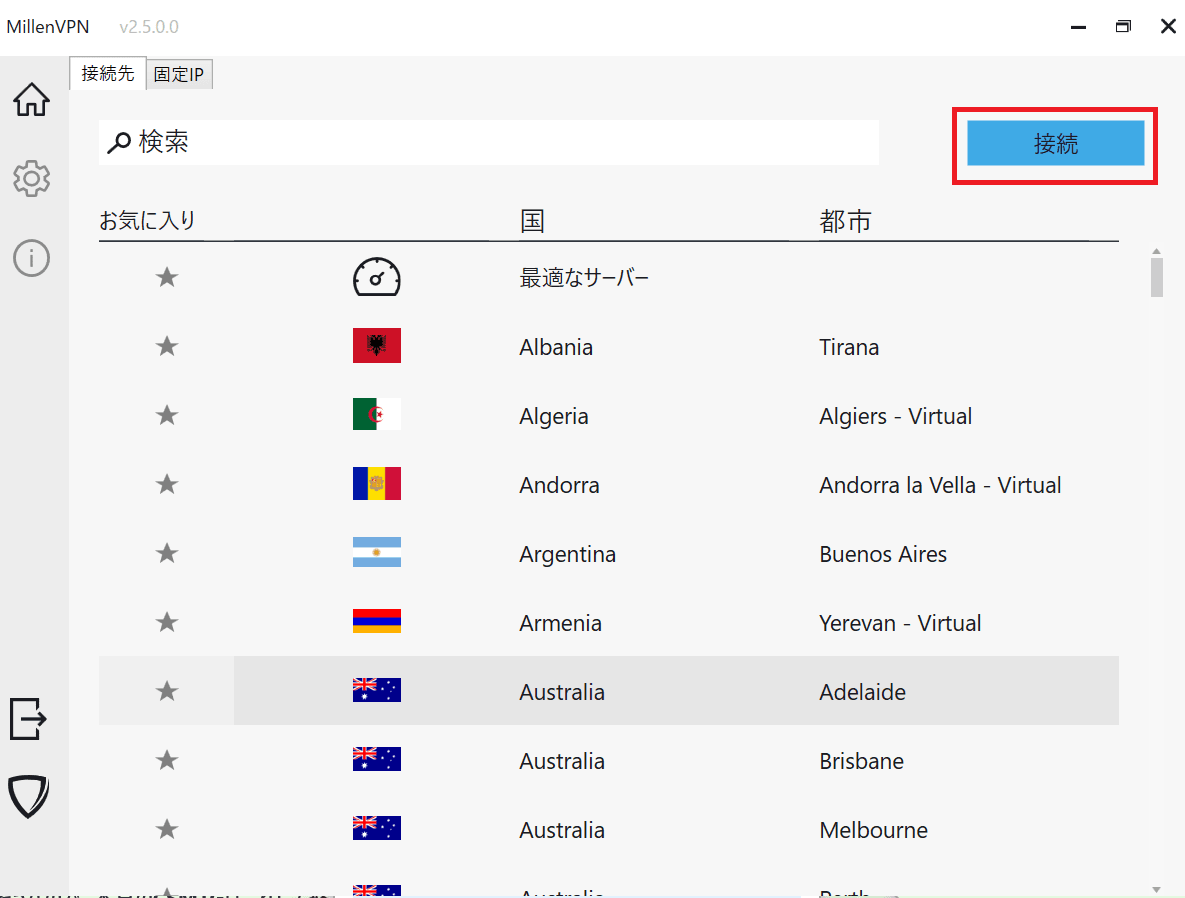
Once it shows "Connected" as shown below, the connection is complete.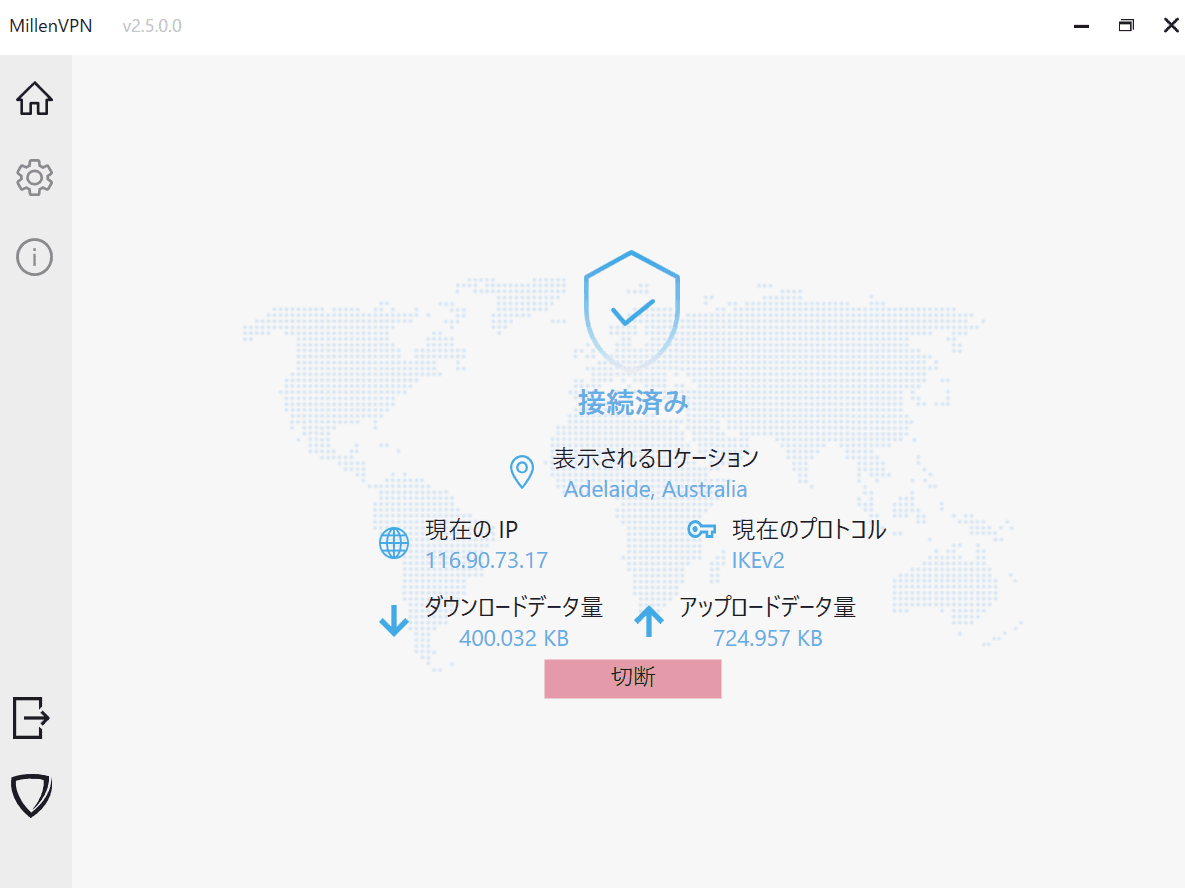
Settings
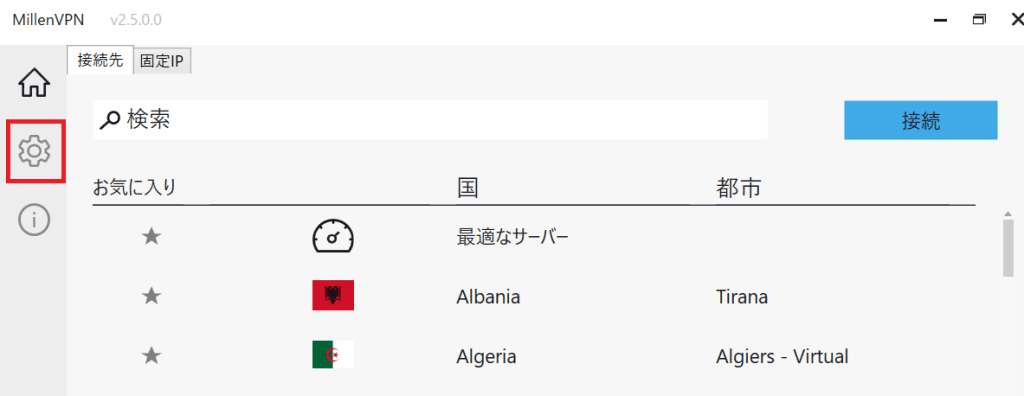
Click the Settings (gear icon) in the left-hand menu of the app to access the settings screen.
General Settings
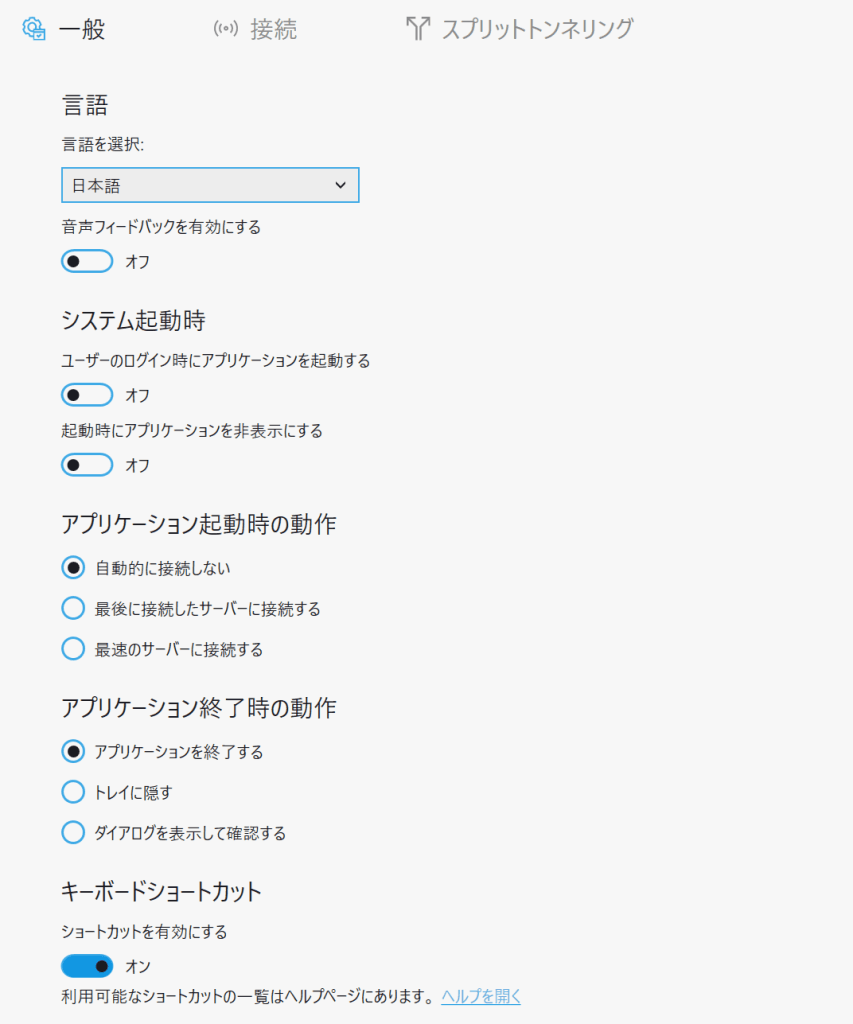
Language
・Select language
⇒Set the language to use.
・Enable audio feedback
⇒When turned on, MillenVPN will provide voice instructions when performing actions.
When the system starts up
・Launch the application when the user logs in
⇒The MillenVPN app launches when you log in to Windows.
・Hide the application at startup
⇒When enabled, the MillenVPN app will launch hidden in the system tray.
Application startup behavior
・Do not connect automatically (default setting)
⇒ The application will not establish a VPN connection upon launch.
・Connect to the last server you connected to
⇒When the application launches, it connects to the VPN server you last connected to.
・Connect to the fastest server
⇒Upon application launch, it automatically selects the server with the fastest connection and establishes a VPN connection.
*Depending on your Internet connection—for example, if it takes a while for the Wi-Fi connection to complete after the device starts up—the automatic connection at startup may not work properly.
If you repeatedly experience issues with automatic connection, please follow the steps below.
- Under "System Startup," turn off "Launch application when the user logs in."
- Please manually launch the MillenVPN app and establish a VPN connection.
Application Exit Behavior
This is the behavior when you press the × button in the MillenVPN app.
・Close the application
The MillenVPN app will close.
・Hide in the tray
⇒The MillenVPN app does not close; it remains hidden in the system tray.
・A dialog box appears, allowing you to choose whether to quit the application or hide it in the system tray.
Keyboard shortcuts
When turned on, you can use the shortcut function.
For details on the shortcut function, please check the "Information" ⇒ "Help" tab.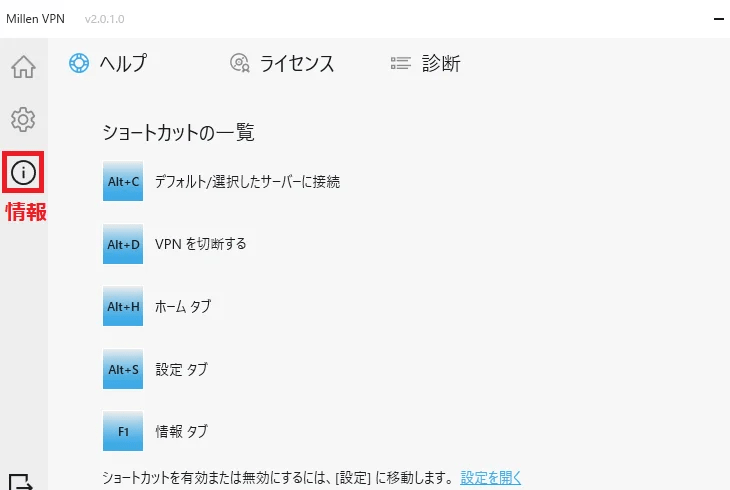
Connection Settings
VPN Protocol

・Automatic
⇒Connects to the optimal protocol from among the VPN protocols.
※ To use OpenVPN TAP Adapter」Installation is required.
・IKEv2 (Recommended setting)
⇒ It provides high stability and security with an extremely fast protocol.
This feature may not be available on some platforms.
・WireGuard
⇒Provides extremely fast VPN service.
This feature is unavailable on networks where UDP is not supported.
・OpenVPN
⇒Provides the highest level of security.
Due to enhanced security, it may be slower than other protocols.
Even when other protocols cannot be used due to firewall restrictions,
OpenVPN may be available.
※ To useOpenVPN TAP AdapterInstallation of [software name] is required.
OpenVPN TAP Adapter
By clicking "Install"You can install the TAP adapter required to use Automatic and OpenVPN.
Connectivity
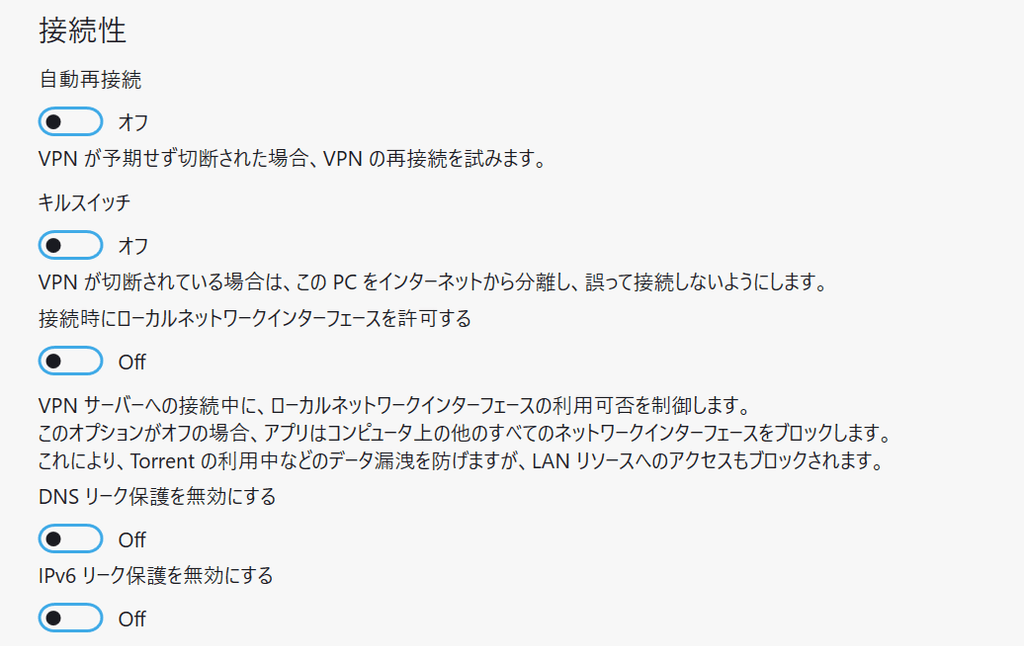
・Auto-Reconnect
⇒Enabling this will automatically reconnect if the VPN unexpectedly disconnects.
・Kill Switch
⇒Enabling this prevents communication using your real IP address if the VPN connection is lost.
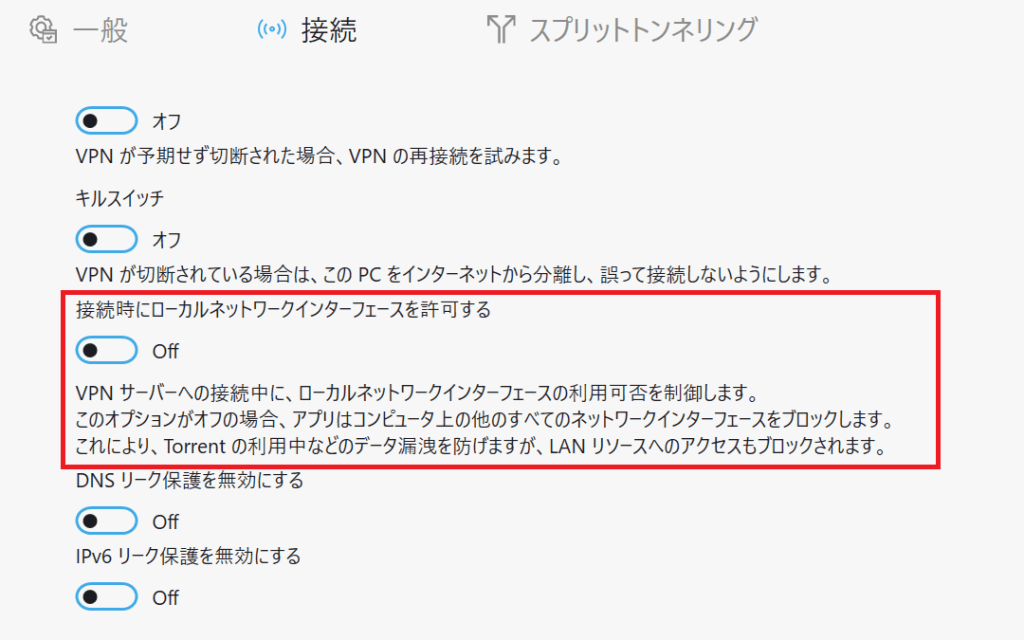
・Allow the local network interface when connecting
⇒When set to "off," communication within the LAN is blocked while the VPN connection is active.
⇒If you set this to "on," communication within the LAN will be allowed even while connected to the VPN.
・Disable DNS leak protection
⇒When set to "off," DNS leakage is prevented.
⇒If you set this to "on," DNS leaks will remain unprotected.
・Disable IPv6 Leak Protection
⇒When set to "off," IPv6 leakage is prevented.
⇒If set to "on," IPv6 leaks will remain unprotected.
Double Hop
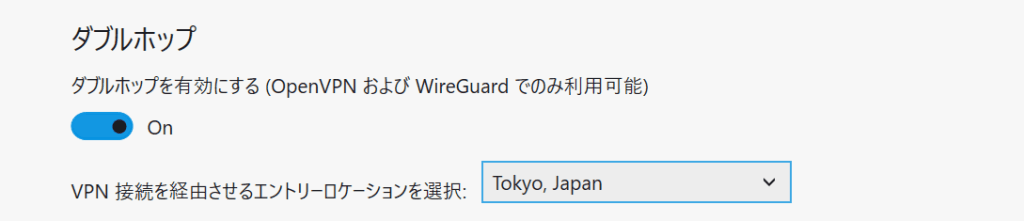
Enabling the Double Hop feature allows you to use a VPN connection that routes through two servers.
Since communications are encrypted and protected in two stages, it becomes more difficult for third parties to track them or identify IP addresses.
How to Set Up Double Hop
① Disconnect from the VPN. (You cannot make changes while connected to the VPN.)
② On the "Connection" tab in the settings, turn on "Enable Double Hop" (This feature is available only when the VPN protocol is set to OpenVPN or WireGuard.)
③ Select any location you want to pass through.
④ Select a connection destination from the list as usual, and establish a VPN connection.
Traffic Optimization
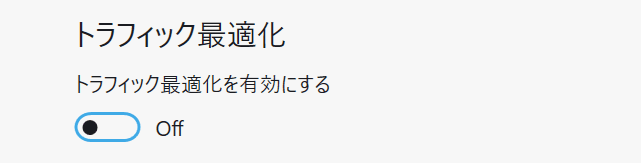
・Enable traffic optimization
⇒ When enabled, this feature automatically adjusts your VPN connection based on your network environment to minimize speed drops and connection issues when streaming video, playing online games, or making online calls.
The system automatically adjusts settings even if the network conditions change.
Advanced Protection
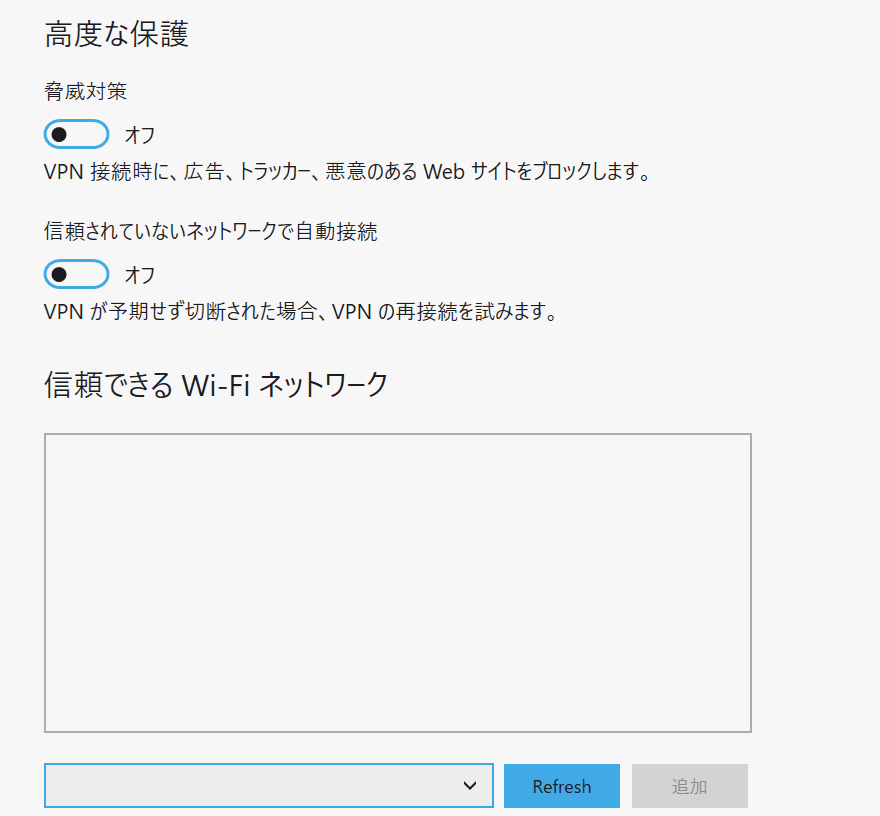
・Threat Mitigation
⇒ When turned on, this feature blocks ads, trackers, and access to malicious websites while you're connected to the VPN.
・Automatically connect to untrusted networks
⇒ When this feature is turned on, it will automatically establish a VPN connection whenever you connect to a network that isn't registered as a "trusted Wi-Fi network" (such as public Wi-Fi while out and about).
・A trusted Wi-Fi network
While connected to a Wi-Fi network you've added to your list, you will not be subject to "Automatic Connection on Untrusted Networks."
Split Tunneling
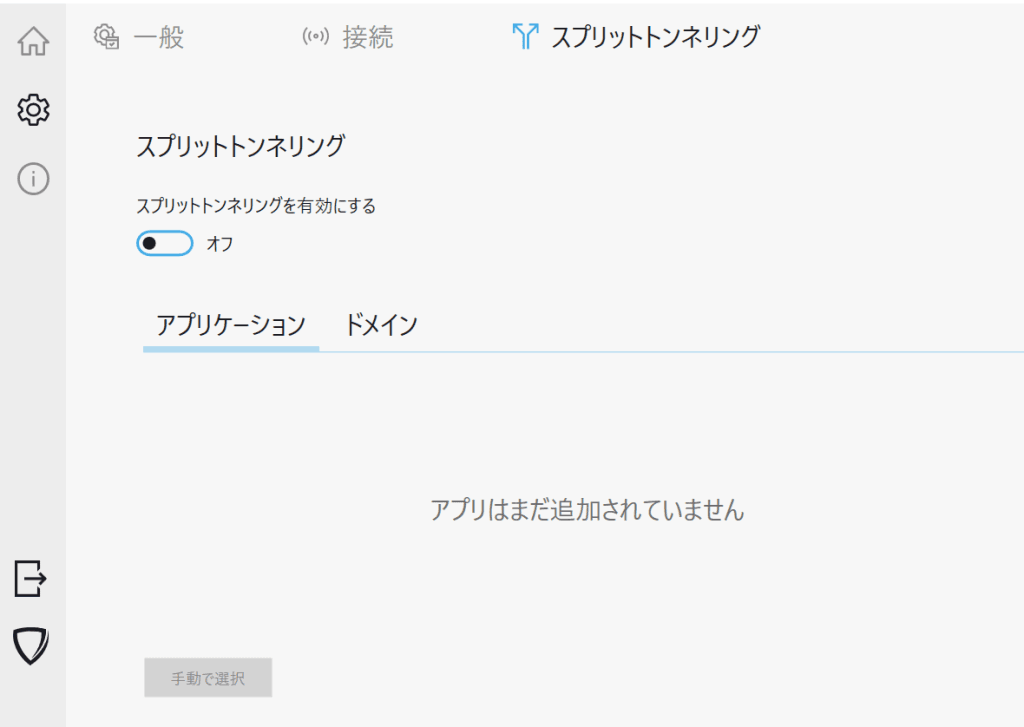
Split tunneling is a feature that allows you to specify domains or applications that will use an Internet connection not protected by the VPN while you are connected to the VPN.
How to Set Up Split Tunneling
① Disconnect from the VPN. (You cannot change this setting while connected to the VPN.)
② In the Settings menu, go to the Split Tunneling tab and turn on [Enable Split Tunneling]
③ Add any application or domain using [Manual Selection].
④ On the "Connections" tab, check the box next to "Allow local network interfaces when connecting."