
Fixed IP Option Service (Subscription Plans Only)
What Is the Static IP Option?
- This option allows you to connect using the same IP address every time you use the VPN.
- A primary contract (MillenVPN subscription plan) is required. You cannot subscribe to this option on its own.
Click here for information on subscription plans - The static IP option you signed up for at the same time as your subscription plan will be included with your subscription plan30-day money-back guaranteeis subject to this.
You cannot continue your subscription plan and apply the money-back guarantee only to the fixed IP option.
Any Fixed IP option you purchase after subscribing to a subscription plan is not eligible for a refund, even if it falls within the subscription plan's refund guarantee period.
In this case, only subscription plans are eligible for the money-back guarantee.
For more details, see “Refund Policy for the Fixed IP OptionPlease check the following.
Application Procedure
The sign-up process differs depending on whether you have already subscribed to the main contract (subscription plan) or not.
Please select your current situation using the button below.
Canceling the Static IP Option
If your service is canceled, that static IP address may be reassigned to another user in the future.
For security reasons, if you have added a static IP address to any whitelist, we recommend that you remove it.
Cancellation Procedure
The steps vary depending on whether you keep your main contract (subscription plan).
When to Cancel Your Subscription
- If you cancel your main contract, the static IP option will also be automatically canceled.
The period of availability will be determined based on when the main contract ends. - If you cancel only the Fixed IP Option, you will no longer be able to use the Fixed IP Option, regardless of the remaining term of your contract.
How to Connect Using a Static IP Address
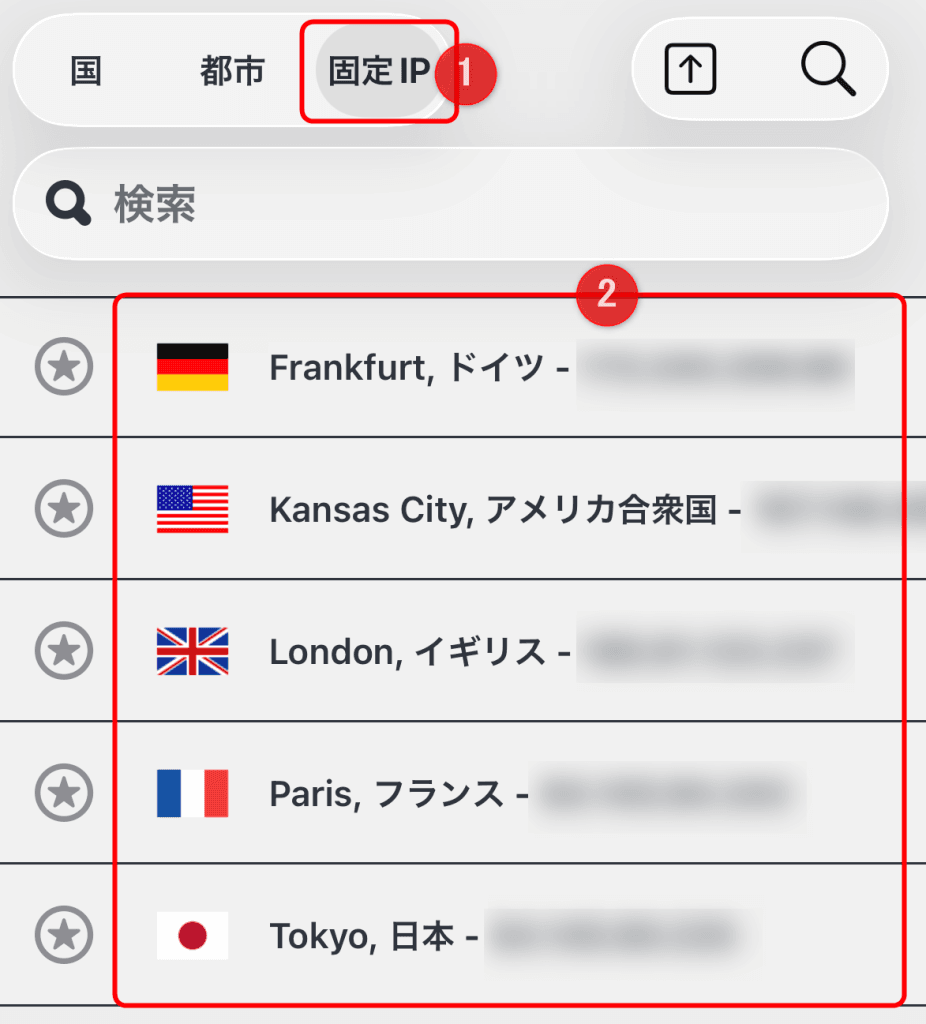
Open the app's server list screen and select the "Static IP" tab.
Please select a destination from the regions listed.
* Only regions for which a contract has been signed will be displayed.
For more detailed instructions on how to connect by device, please see below.
How to Check Your Static IP Address
You can check your assigned static IP address on My Page or in the app.
How to Check from "My Page"
STEP 1: From the menu on your My Page, go to “Services > My Services”
STEP 2: Select the main contract (MillenVPN subscription plan)
The details screen for the main contract (MillenVPN subscription plan) will open.
STEP 3: Select “Additional Information”
Select "Additional Information" at the bottom of the page to view the static IP address you have been assigned.

How to Check via the App
You can verify the static IP address you obtained on the screen where you set up the "Static IP" connection.
Please see below for details.
- How to Use the Static IP Option on iOS
- How to Use the Static IP Option on a Mac
- How to Use the Static IP Option in Windows
- How to Use the Static IP Option on Android
Steps for Signing Up for a Subscription Plan and a Static IP Option at the Same Time
STEP 1: Select the subscription plan duration on the sign-up screen
Open the application screen.

Select the subscription plan term, then click the "Fixed IP Option" field to open it.
STEP 2: Select the Options drop-down menu
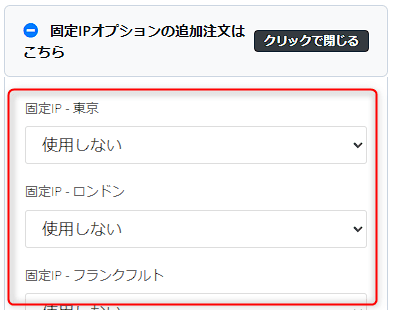
A list of available locations will be displayed; please select "Use" from the drop-down menu for your desired location.
STEP 3: Application Complete
Follow the on-screen instructions until you reach the final screen to complete your subscription plan and static IP option sign-up.
Steps for Adding or Canceling the Static IP Option
STEP 1: From the menu on your My Page, go to “Services > My Services”
STEP 2: Select the main contract (MillenVPN subscription plan)
The details screen for the main contract to which you want to add an option will open.
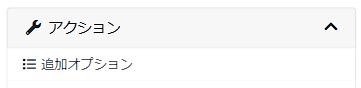
STEP 3: Select "Action > Additional Options" from the submenu
STEP 4: Select the setting you want to activate (or deactivate) from the location list
The change will take effect immediately.
Please note that if you change the static IP option for a region from “Enabled” to “Disabled,” you will no longer be able to use that option, regardless of the remaining term of your contract.
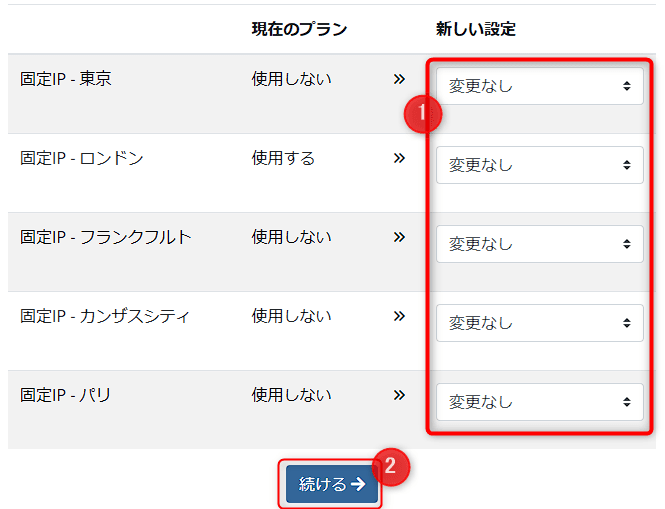
In the "New Settings" section, select the item you want to change and click the "Continue" button.
* Due to system limitations, you cannot change the setting to "Use" and then to "Do not use" at the same time. Please make these changes in two separate steps.
STEP 5: Application Complete
Please follow the on-screen instructions until you reach the completion screen.
Once the process is complete, you will be able to (or will not be able to) select a static IP address in the app's connection settings.