What to do if you cannot connect to MillenVPN Native
Please try this procedure if your VPN connection does not work properly with MillenVPN Native.
(1) When one of the following errors occurs
If you are experiencing any of the following errors, please check the link.
- Policy Match Error
- Parameters are incorrect.
- IKE authentication credentials not accepted
- The VPN disconnects every time after about 24 minutes.
(2) When the above does not apply and connection is not possible
There have been many cases of connection failures due to incorrect user name/password or server address entered during setup.
Please refer to the following to confirm that the correct information has been entered.
How to check user name, password, and server address to connect to
1.My PageLog in.
Click on Services.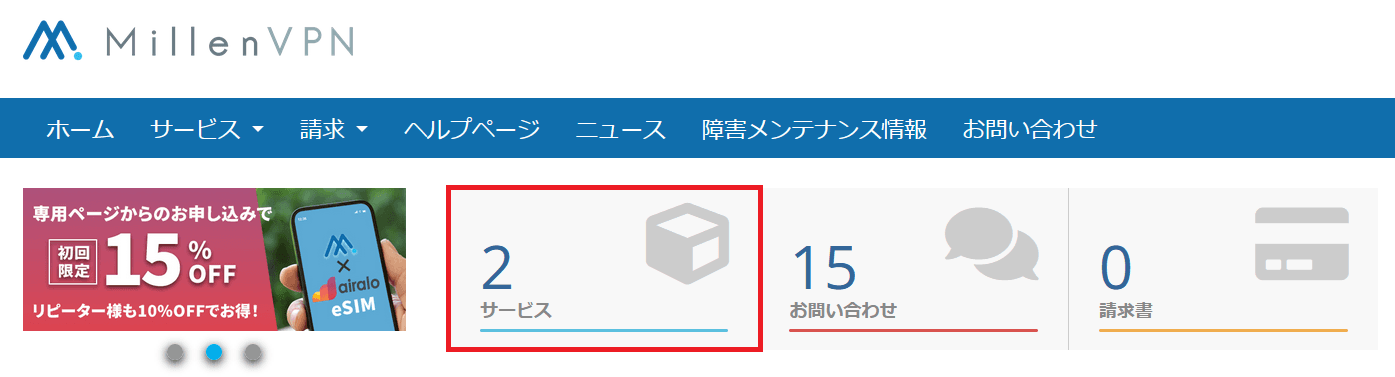
3. Click on MillenVPN Native (free option).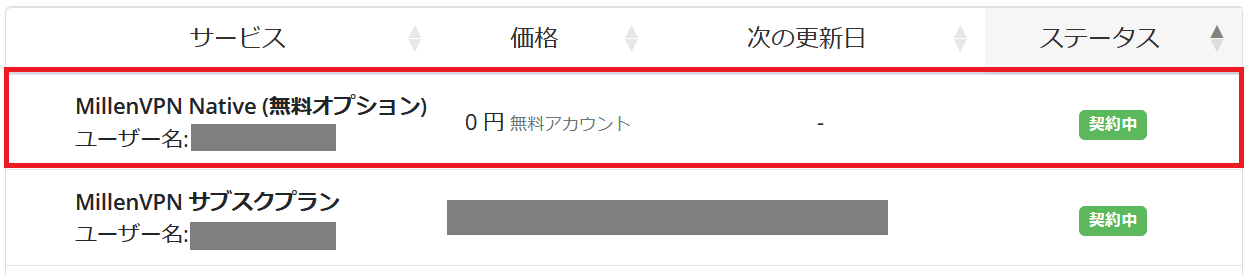
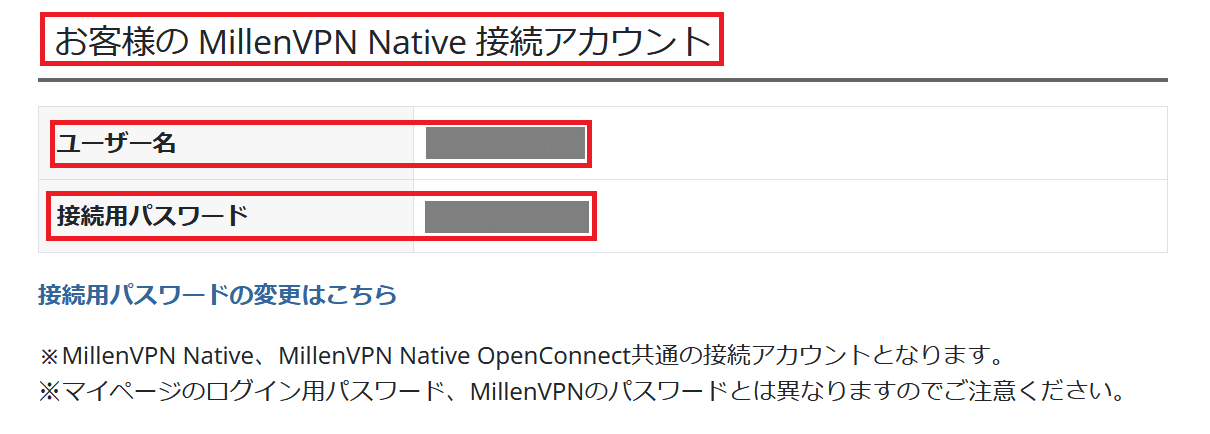
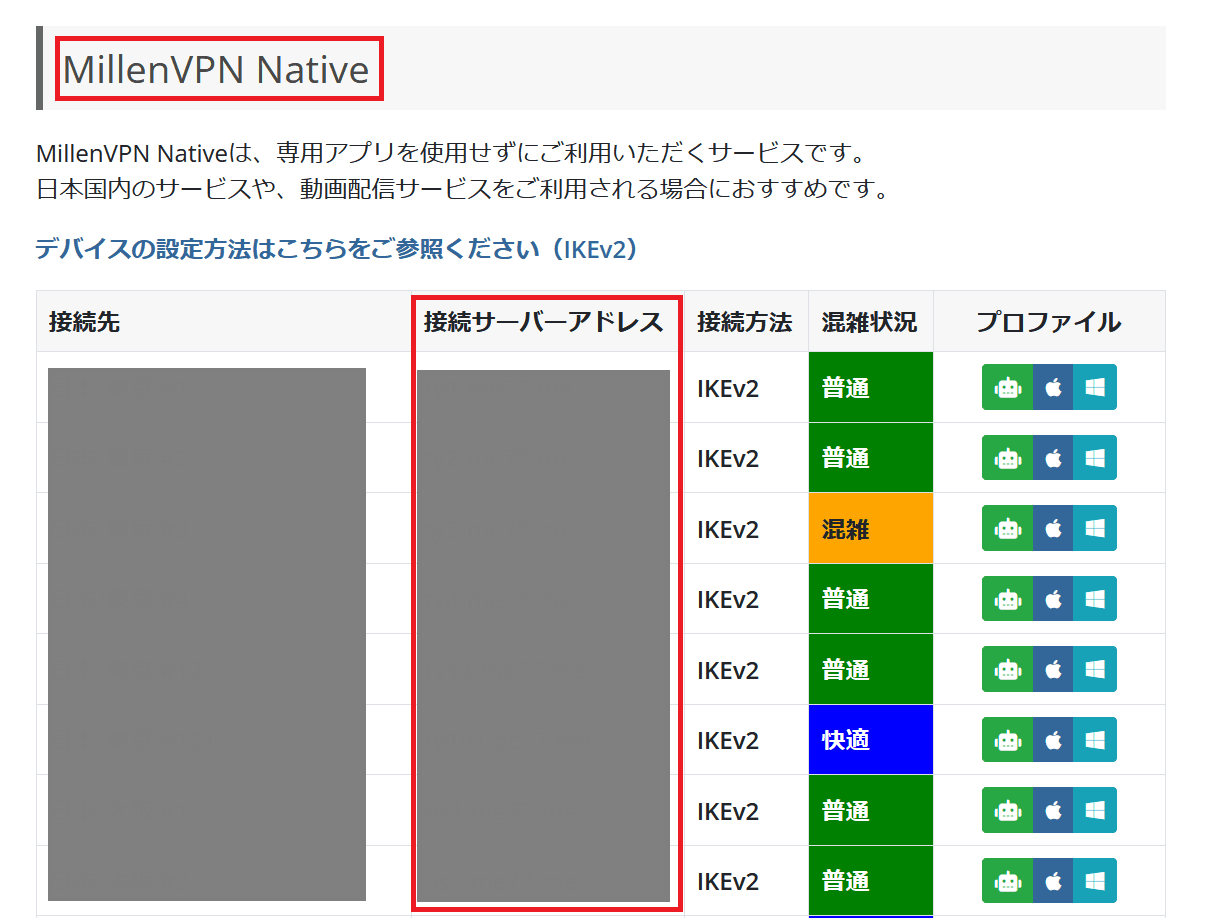
4. The user name, password, and server address to connect to will be displayed in the page opened in step 3.
[Notes.
Manual input is prone to capitalization errors and extra spaces, so please use the following format whenever possible.Copy and paste inputPlease do so.
We have received many cases where the addresses of "MillenVPN Native" and "MillenVPN Native OpenConnect" have been entered incorrectly. Please be sure toServer address of "MillenVPN Nativecorrectly.
Username/Password
Connection Server Address
(3) When there is no error in the input information but the connection cannot be established
Please try the following 5 points.
1. Try a connection using a configuration profile
Please refer to the linked pages for each OS below to check if the connection is possible using the configuration profile.
2. Change the server to connect to and see if it is possible to connect.
HerePlease check the destination server of MillenVPN Native according to the procedure described in Section 3.2.1, and change the server address to a different one from the one you have currently set and check if the connection is possible.
3.Whether it is possible to change the communication line and connect
Please verify whether you can connect while connected to a different communication line than the one currently in use (e.g., connecting to a different Wi-Fi network, connecting without being connected to Wi-Fi).
4. Stop the security software and see if the connection is possible.
If you have security software installed, please verify whether you can connect while the security software is disabled.
5. Restart the device to see if you can connect
If the above measures do not resolve the issue, we will investigate the cause on our end, so
We apologize for the inconvenience, but please include the following information:Contact FormPlease feel free to contact us.
1.Environment for use
Service attempting to connect: MillenVPN Native
OS and version of your device (e.g. iOS 15 / Windows 11):
The name of the country where the VPN will be used:
Usage of VPN:
2. Provide screen shots
A screenshot of the screen where the user name, password, and connection server address are entered
Screenshot of the screen showing the error message
3. Isolate the situation
Are you currently connected to other VPNs (MillenVPN app or other VPNs): (Yes/No)
Do you want to change the server to which you are connected to improve the situation?
Do you want to change communication lines to improve (e.g., different Wi-Fi or mobile communication): (Yes/No)
Do you want to stop the security software to improve the situation: (Yes/No)
Does restarting the terminal improve the situation: (Yes/No)