
Troubleshooting When the Server Tab Doesn't Display the Connection List [iOS]
This procedure applies to the iOS version of the MillenVPN app you are using, specifically when the list of available servers does not appear in the Server tab and you select "Reload".”The operation could not be completed correctly: \”Could not retrieve the access token.\". If you encounter this issue, please contact Customer Support."Please try this if an error occurs.
◆Troubleshooting/iOS Version
① Install the latest version of the app
If the version of the app you are using is not the latest version, please install the latest version and check if the issue is resolved.
Download the latest version of MillenVPN
If no improvement is seen, please try steps ② and beyond.
② Log out of the MillenVPN app and force close the MillenVPN app.
To log out of the iOS version of MillenVPN, please refer to the iOS logout method on the following page.
How to Log Out of the MillenVPN App
https://support.millenvpn.jp/2114
③ Under 【Settings】→【Auto-fill and Passwords】, turn off "Passwords" and then "Auto-fill passwords and passkeys"
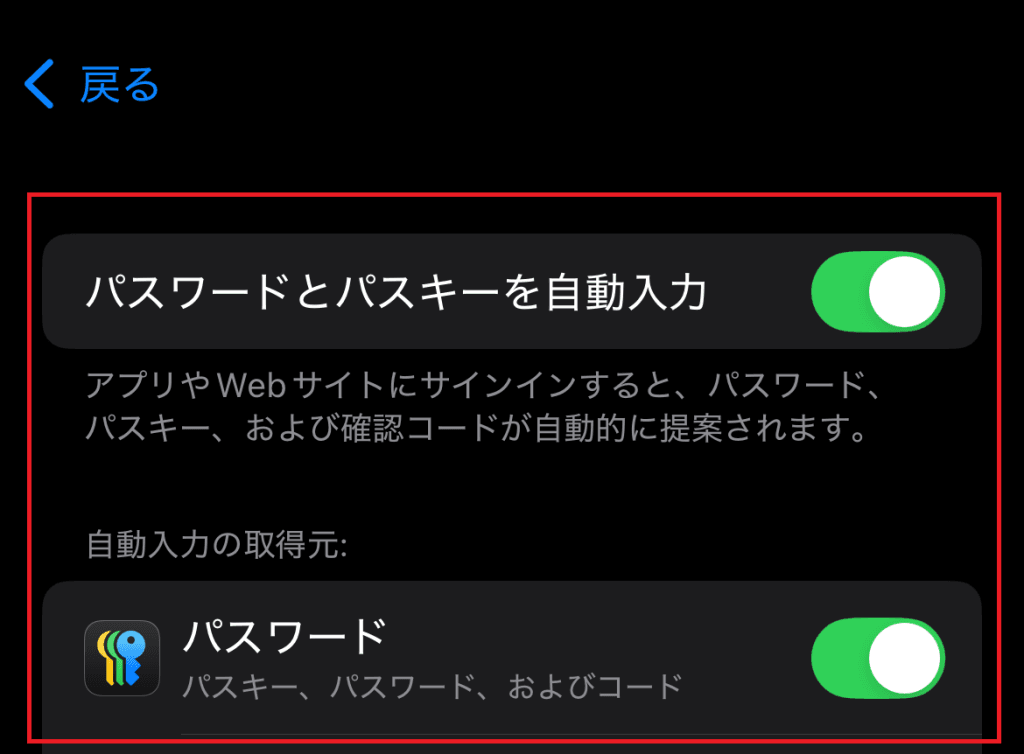
④ If you are using "Touch ID and Passcode," turn off "Auto-Fill Passwords" from "Touch ID and Passcode."

⑤ Turn off "Sync this iPhone" under "iCloud Password & Keychain"

⑥ Log in to the MillenVPN app and wait about 5 seconds without performing any actions after logging in.
For login information for the iOS version of MillenVPN, please refer to the page below.
How to Check Your MillenVPN App Login Information
https://support.millenvpn.jp/1549
⑦ Select any connection destination from the list and press the Connect button.
※(1): If the server list does not appear at this time, press "Settings" → "Update Server Information".
※(2): When you press the Connect button, a window will appear asking you to allow the VPN configuration. Grant permission.
⑧ Turn ON the items turned OFF in steps ②, ③, and ④.
If you still experience issues after following steps ① to ⑧, please refer to the following page to check whether you can connect using "MillenVPN Native".
【Getting Started with MillenVPN Native】
https://support.millenvpn.jp/669