
How to Use MillenVPN Native on Android 12
Verifying MillenVPN Native Connection Information
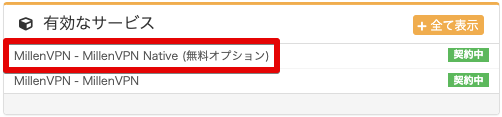
Log in to My PageThen, click "MillenVPN Native (Free Option)" within the active service.
You can check the connected account and connected server.
※Please note that MillenVPN and MillenVPN Native use different passwords.
How to Set Up Android 12
To use MillenVPN Native, you need to configure your device settings.
1. If you have access to Google Play, search for "strongSwan VPN Client" and install it.
or,HereInstall from here.
2. After launching the app, tap "ADD VPN PROFILE".

3. On the displayed screen, enter information into each field as shown below, then tap "SAVE".
| Server | Enter the server address to connect to ▼How to Check the Server Address 1) Log in to My Page https://accounts.millenvpn.jp/clientarea.php 2) Click on the service 3) Click MillenVPN Native (Free Option) 4) It will be displayed in the "Connection Server Address" field of MillenVPN Native within the page opened in step 3). ※ Please note that this differs from the connection server address for MillenVPN Native OpenConnect. |
| VPN Type | IKEv2 EAP (Username/Password) |
| Username | Enter your username ▼How to Check Your Username 1) Log in to My Page https://accounts.millenvpn.jp/clientarea.php 2) Click on the service 3) Click MillenVPN Native (Free Option) 4) It will appear under "Your MillenVPN Native Connection Account" on the page opened in step 3. |
| Password (optional) | Enter your password ▼How to Verify Your Password 1) Log in to My Page https://accounts.millenvpn.jp/clientarea.php 2) Click on the service 3) Click MillenVPN Native (Free Option) 4) It will appear under "Your MillenVPN Native Connection Account" on the page opened in step 3. ※ Please note that this is different from the MillenVPN app password. ※ The password for MillenVPN Native is,Change from My PageIt is also possible to receive it. |
| Profile name (optional) | Enter your preferred name (e.g., VPN) |

4. Tap the created settings.

5. When the following screen appears, tap "OK" → "Allow".

