
How to Use MillenVPN Native on iOS 15 (iPhone)
Verifying MillenVPN Native Connection Information
Log in to My PageThen, click "MillenVPN Native (Free Option)" within the active service.
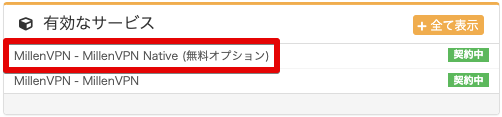
You can check the connected account and connected server.
※Please note that MillenVPN and MillenVPN Native use different passwords.
How to Set Up iOS 15 (iPhone)
To use MillenVPN Native, you need to configure your device settings.
1. Tap "Settings".

2. Scroll down and tap "General."

3. Scroll down and tap "VPN and Device Management."

4. Tap "VPN".

5. Tap "Add VPN Configuration..."
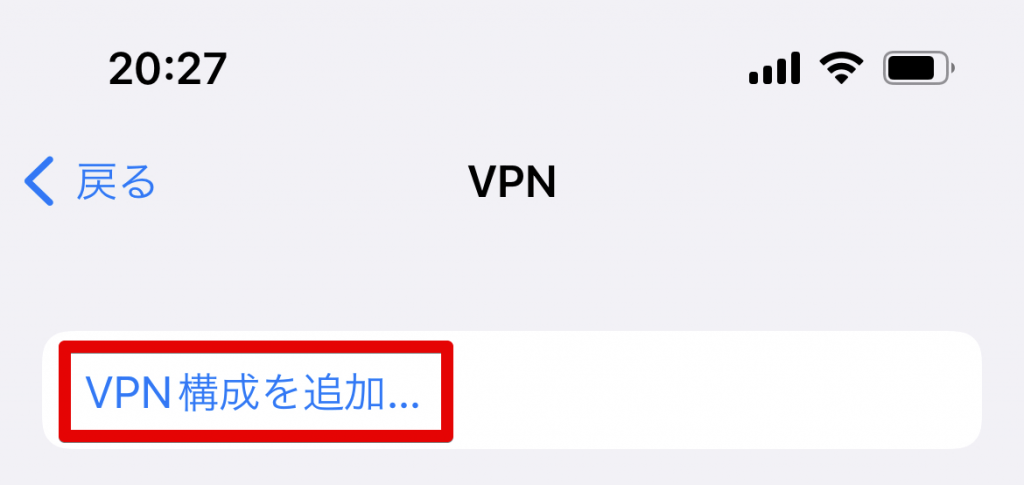
6. The "Add Configuration" screen will appear. Enter the information below and tap "Done."
| Type | IKEv2 |
| Explanation | Enter your preferred name (e.g., VPN) |
| Server | Enter the server address to connect to ▼How to Check the Server Address 1) Log in to My Page https://accounts.millenvpn.jp/clientarea.php 2) Click on the service 3) Click MillenVPN Native (Free Option) 4) It will be displayed in the "Connection Server Address" field of MillenVPN Native within the page opened in step 3). ※ Please note that this differs from the connection server address for MillenVPN Native OpenConnect. |
| Remote ID | Please re-enter the connection server address you entered above. |
| Local ID | Blank space |
| User authentication | Username |
| Username | Enter your username ▼How to Check Your Username 1) Log in to My Page https://accounts.millenvpn.jp/clientarea.php 2) Click on the service 3) Click MillenVPN Native (Free Option) 4) It will appear under "Your MillenVPN Native Connection Account" on the page opened in step 3. |
| Password | Enter your password ▼How to Verify Your Password 1) Log in to My Page https://accounts.millenvpn.jp/clientarea.php 2) Click on the service 3) Click MillenVPN Native (Free Option) 4) It will appear under "Your MillenVPN Native Connection Account" on the page opened in step 3. ※ Please note that this is different from the MillenVPN app password. ※ The password for MillenVPN Native is,Change from My PageIt is also possible to receive it. |
| proxy | Off |

7. Verify that the settings you just added are checked, then tap the button on the right side of the status. The connection to MillenVPN Native will begin.
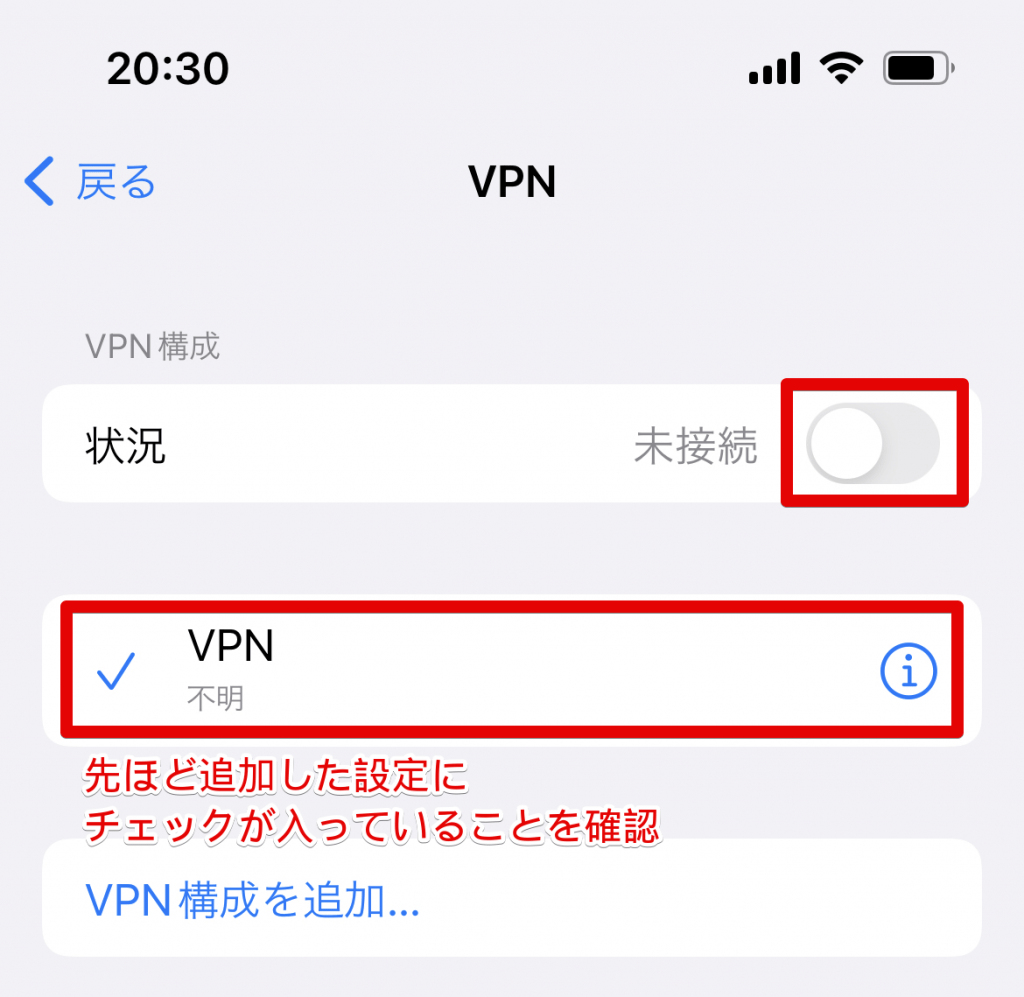
8. For future connections, a "VPN" option will be added to the "Settings" screen. Tap the button on the right to connect.
