
How to Connect to MillenVPN Native Using a macOS Configuration Profile
Verifying MillenVPN Native Connection Information
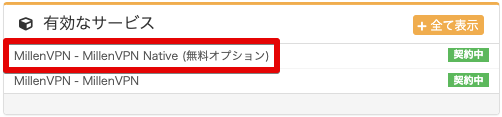
Log in to My PageThen, click "MillenVPN Native (Free Option)" within the active service.
Scroll down the screen to view your MillenVPN Native connection account and connection server.
On macOS, clicking the Apple icon next to the server you want to connect to will download the configuration profile.

Connection Method Using Profiles
The downloaded profile can be found in the browser's arrow section or
You can check it in Finder > Downloads on your Mac.


Clicking on the profile will display the screen below.
Click OK to close the window.

Search for the "Device Management" screen in the Settings menu.
Double-click the profile you downloaded earlier.

On the next screen, click "Install."

On the next screen that appears, enter the password you use on your Mac computer and click "OK."
※ Please note that this is not the MillenVPN Native password.
※ If you do not know the password for your Mac computer, please contact Apple.

A profile will be added to the device management screen.

Open the VPN section in the settings menu to view the configuration of the added VPN.
Click the area indicated by the arrow.

Enter your MillenVPN Native password.
※ The password for MillenVPN Native differs from the information in the MillenVPN app.
▼How to Verify Your Password
1) Log in to My Page
https://accounts.millenvpn.jp/clientarea.php
2) Click on the service
3) Click MillenVPN Native (Free Option)
4) It will appear under "Your MillenVPN Native Connection Account" on the page opened in step 3.
※ The password for MillenVPN Native is,Change from My PageIt is also possible to receive it.

If the VPN screen displays "Connected," the connection is complete.

How to Delete a VPN Configuration Using a Profile
While not essential for VPN connections, if your configuration does not utilize them, you can delete profiles using the method below.
Search for the "Device Management" screen in the Settings menu.
Select the profile you want to delete and click the "-" button.

On the next screen that appears, click "Delete."

On the next screen that appears, enter the password you use on your Mac computer and click "OK."
※ Please note that this is not the MillenVPN Native password.
※ If you do not know the password for your Mac computer, please contact Apple.
The profile has been deleted.
