
If the OpenConnect-GUI connection screen does not appear on Windows
After installing the OpenConnect-GUI application, the OpenConnect-GUI icon may appear in the taskbar, but clicking it may not open the application or display the connection screen.
The above issue may be caused by changes to your device's screen settings or display assignments/usage. Please implement the following settings changes and verify if the issue is resolved.
※As this involves changing settings on your device, please perform the following operations at your own risk.
Window Position Information (Registry) Correction
①Completely exit OpenConnect-GUI.
Open Task Manager (Ctrl + Shift + Esc). If openconnect-gui.exe appears in the list of processes, select it and click "End Task".
② Launch the Registry Editor.
Press the Windows key and R key simultaneously to open the "Run" dialog box.
Type regedit and press the Enter key.
③ Navigate to the relevant path.
Copy and paste the following path into the address bar at the top of the screen, then press the Enter key.
HKEY_CURRENT_USER\Software\OpenConnect-GUI Team\OpenConnect-GUI\MainWindow
④ Delete the location information (pos).
With the MainWindow folder selected, locate the value named "pos" in the list on the right.
Right-click the POS and select [Delete].
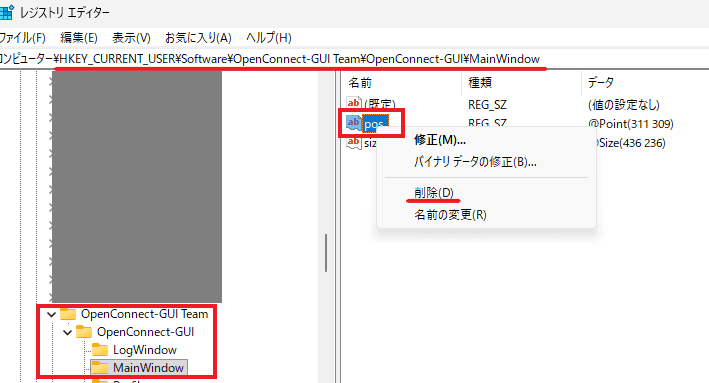
⑤ Close the Registry Editor.
⑥Please verify that you can launch OpenConnect-GUI.
If the above method does not resolve the issue, please also try the following compatibility mode.
Running in compatibility mode
① Right-click the OpenConnect-GUI executable file (usually located at C:\Program Files (x86)\OpenConnect-GUI\openconnect-gui.exe) or the desktop shortcut.
② Select [Properties].
③ Open the [Compatibility] tab.
④ Check [Run this program in compatibility mode], then select [Windows 8] from the dropdown.
⑤ Press [Apply], then click [OK]. After that, please verify whether you can launch OpenConnect-GUI.