
How to Configure Network Extensions for Connecting with WireGuard [Mac]
To establish a WireGuard connection using the MillenVPN app on Mac, you must enable network extensions.
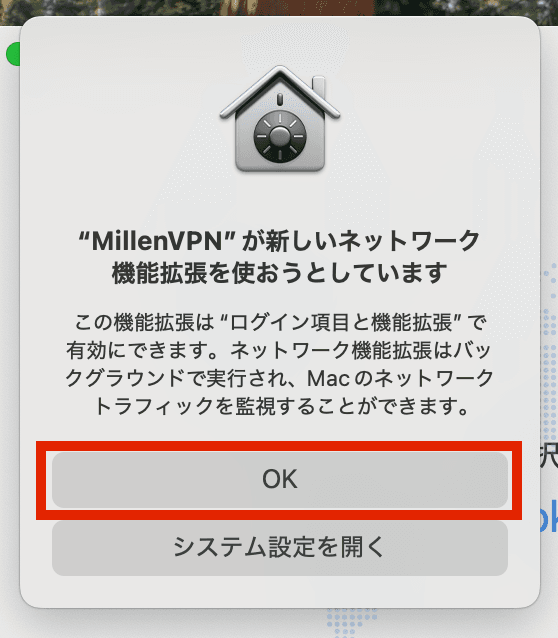
1) Click "OK" on the extension pop-up below.
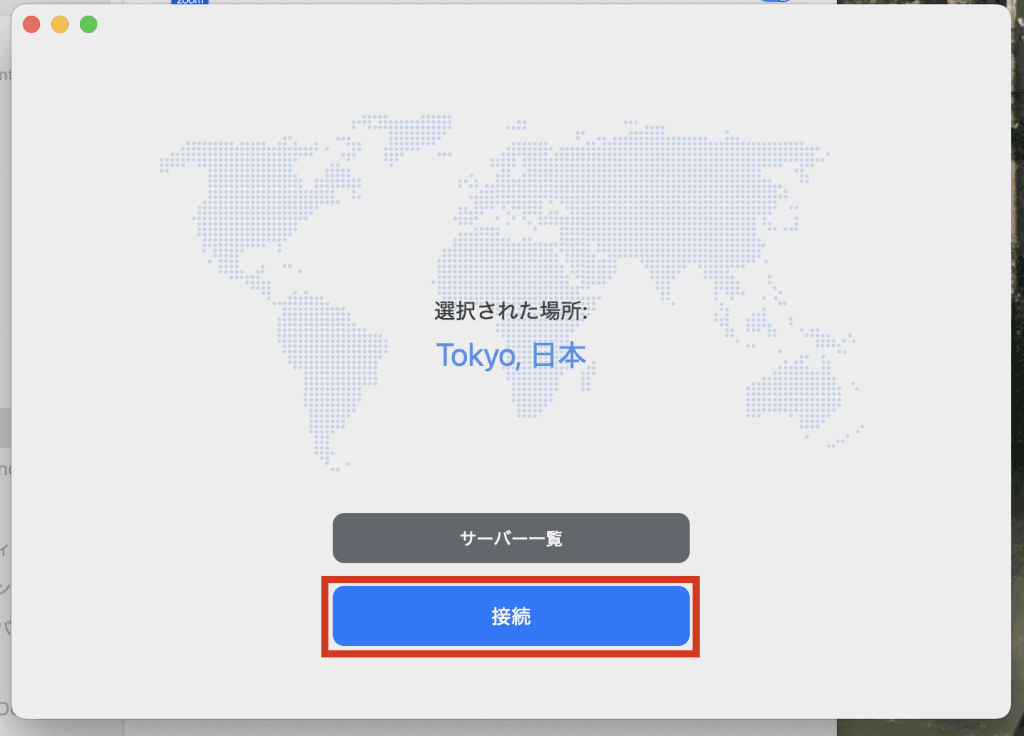
(2) Click "Connect".
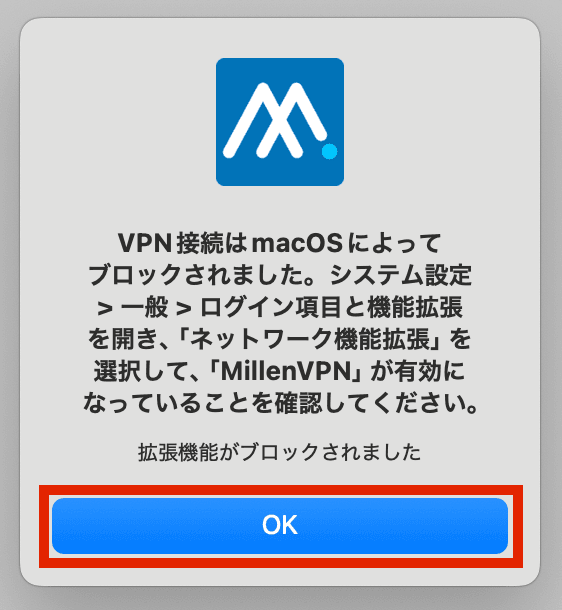
(3) Extension pop-up will appear.
Please check the contents and click "OK".
The PC setup screen will be launched.
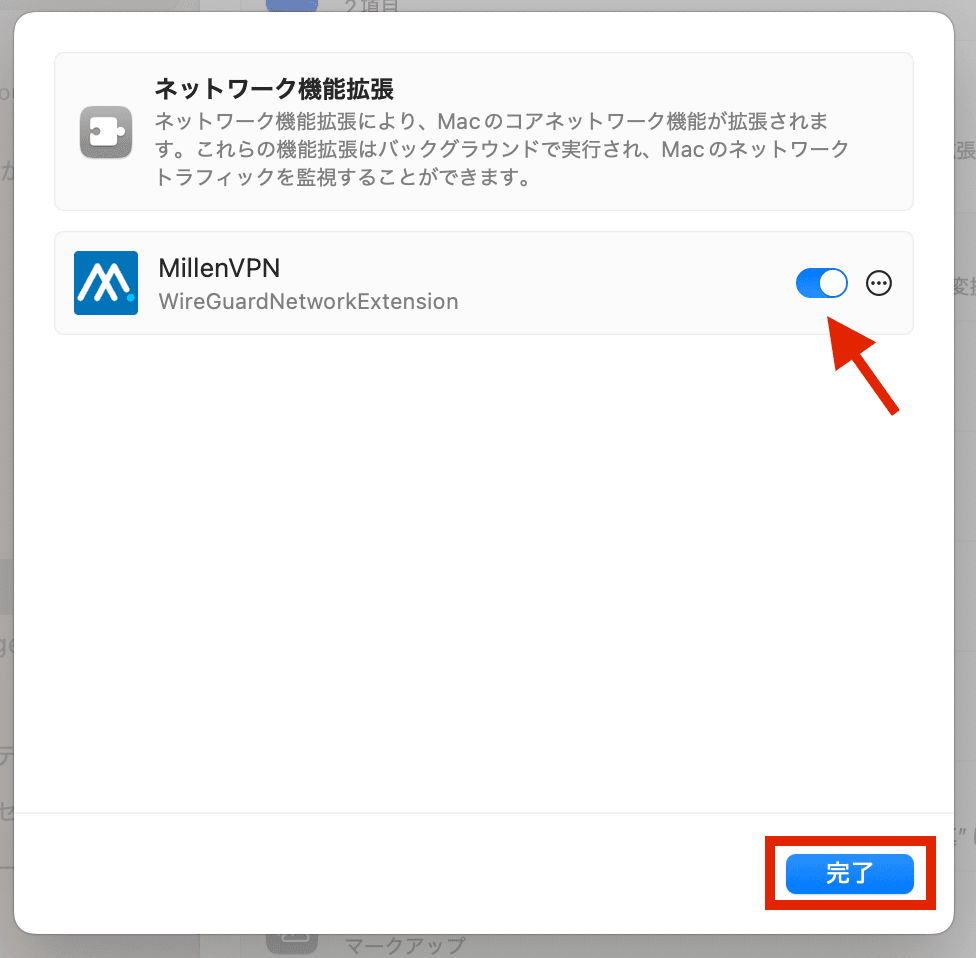
Click on General > Network Extensions.

(5) Activate the MillenVPN button and click "Done" at the bottom of the screen.
*User authentication is required to activate the MillenVPN toggle.
(6) A screen appears indicating that the connection is in progress. If the screen continues to appear, try the following procedure.

(7) Click MillenVPN > Exit in the upper left corner of the PC screen.
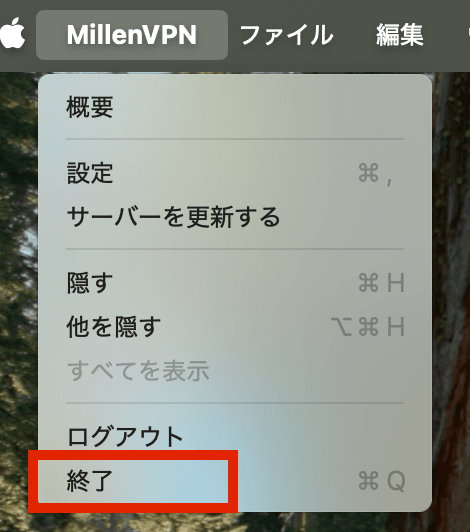
(8) When the application is launched again, the VPN Configuration Permission screen appears.
[Click "Allow.
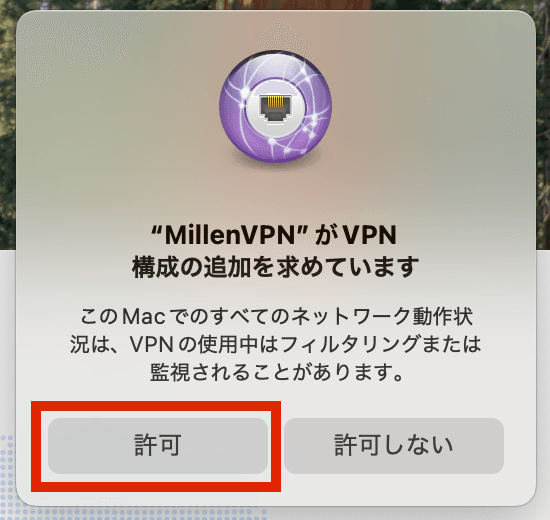
⑨Click [Connect].
(10) When the following screen is displayed, the connection is complete.
Once a connection is made, the country and global IP address of the destination country will be displayed.