Troubleshooting VPN Connection Issues [iOS]
Please try these steps if your VPN connection is not working properly in the MillenVPN iOS app you are using.
If any of the following errors occur
If you are experiencing any of the following errors, please check the link.
- The list of servers is not displayed, or the message ”Operation could not be completed successfully: ≪Could not retrieve the access token.\. Please contact customer support if you experience this problem. or an error message such as ”The operation could not be completed correctly: \"Could not retrieve the access token.\".
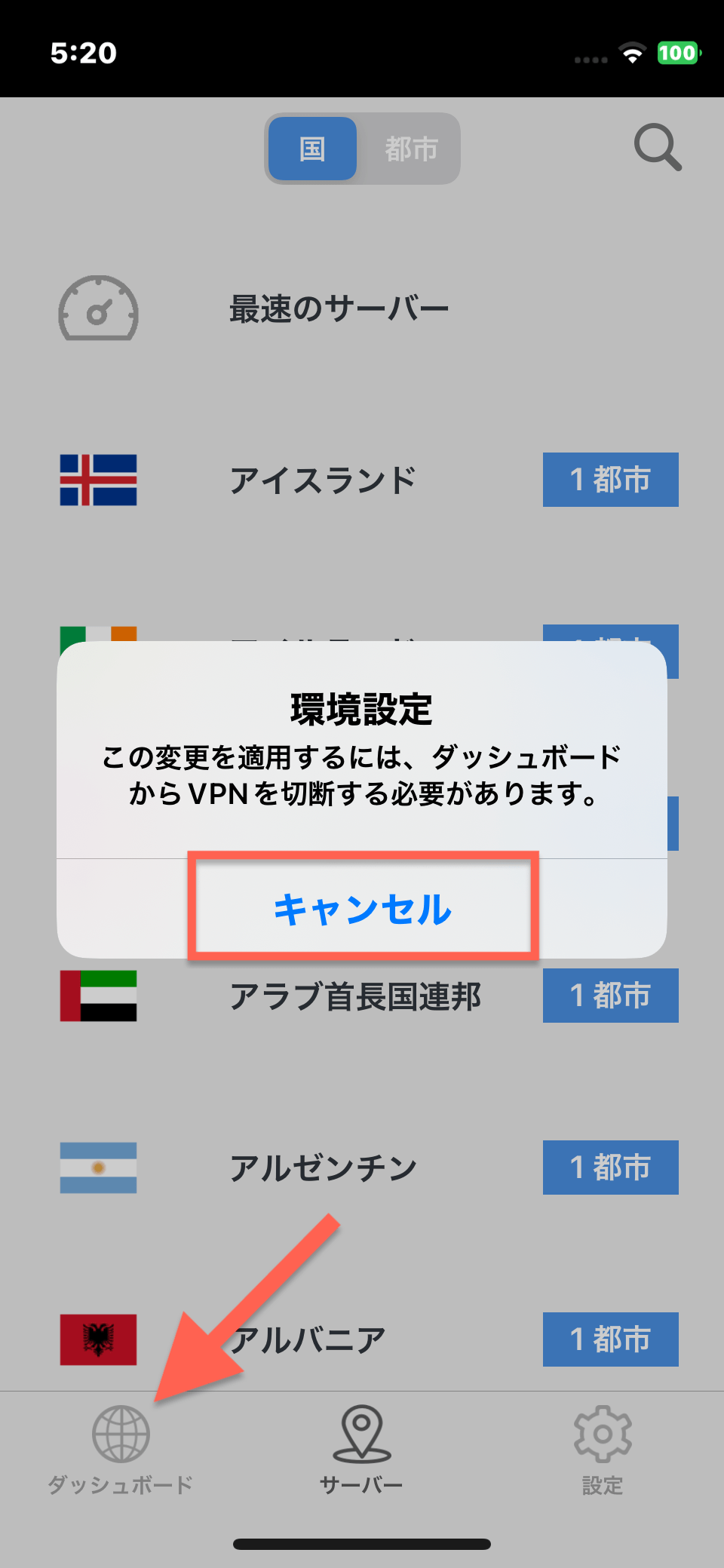
- To adapt this change, you need to disconnect the VPN from the dashboard
If none of the above apply and you cannot connect
◆Troubleshooting/iOS Version
※The VPN display name may vary depending on your usage status.
① Install the latest version of the app
After uninstalling MillenVPN, download the latest version of MillenVPN and try connecting to the VPN again.
If you already have the latest version of the app installed, please reinstall the app once.
Installing the latest iOS appHere
②Relogin
Please press the logout button in the MillenVPN app's "Settings" and log back in.
※After logging into the app, please wait approximately 5 seconds before performing any actions.
③ Server Information Update
From the MillenVPN app's "Settings," tap "Update Server Information" and try connecting.
④Changing the VPN Protocol
- Tap "Settings".
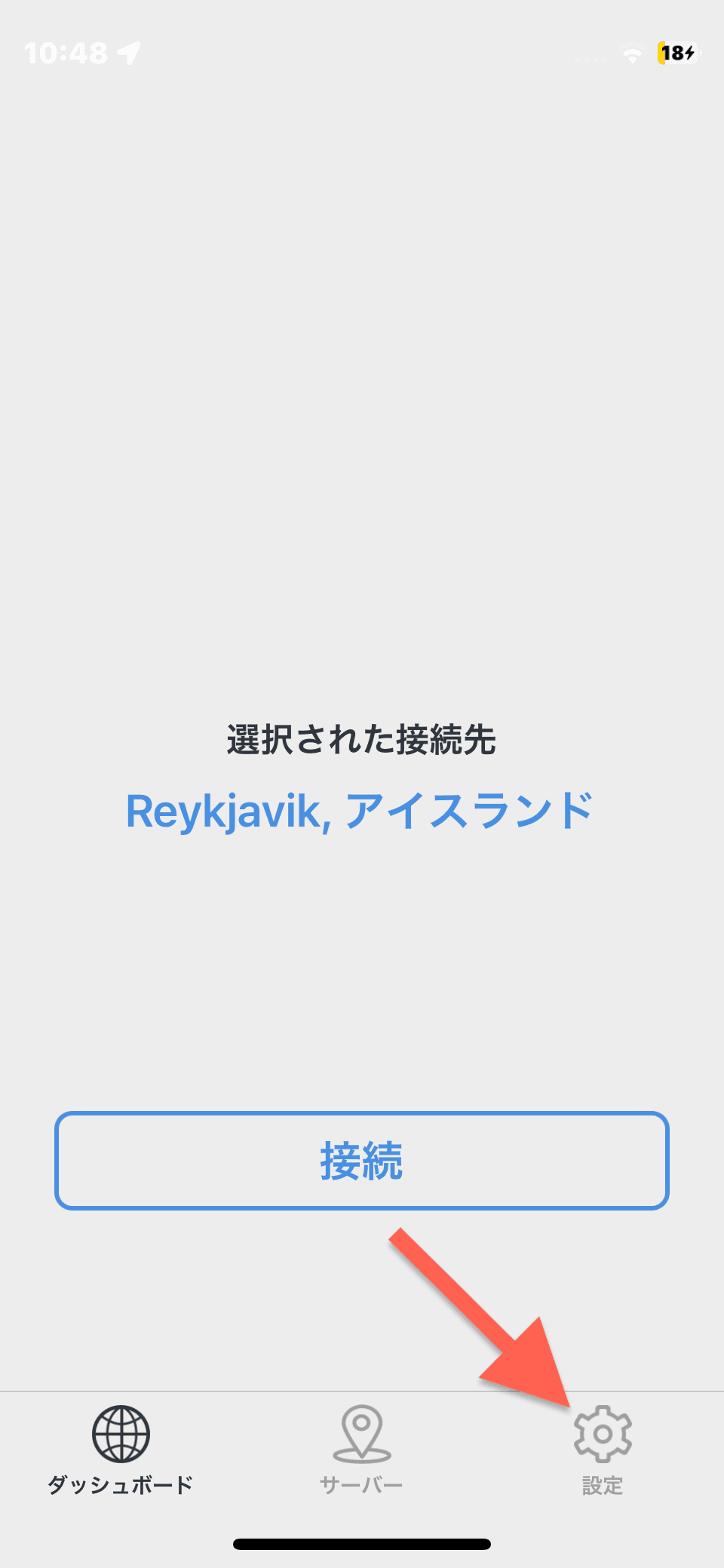
- For images, the VPN protocol is set to "WireGuard".
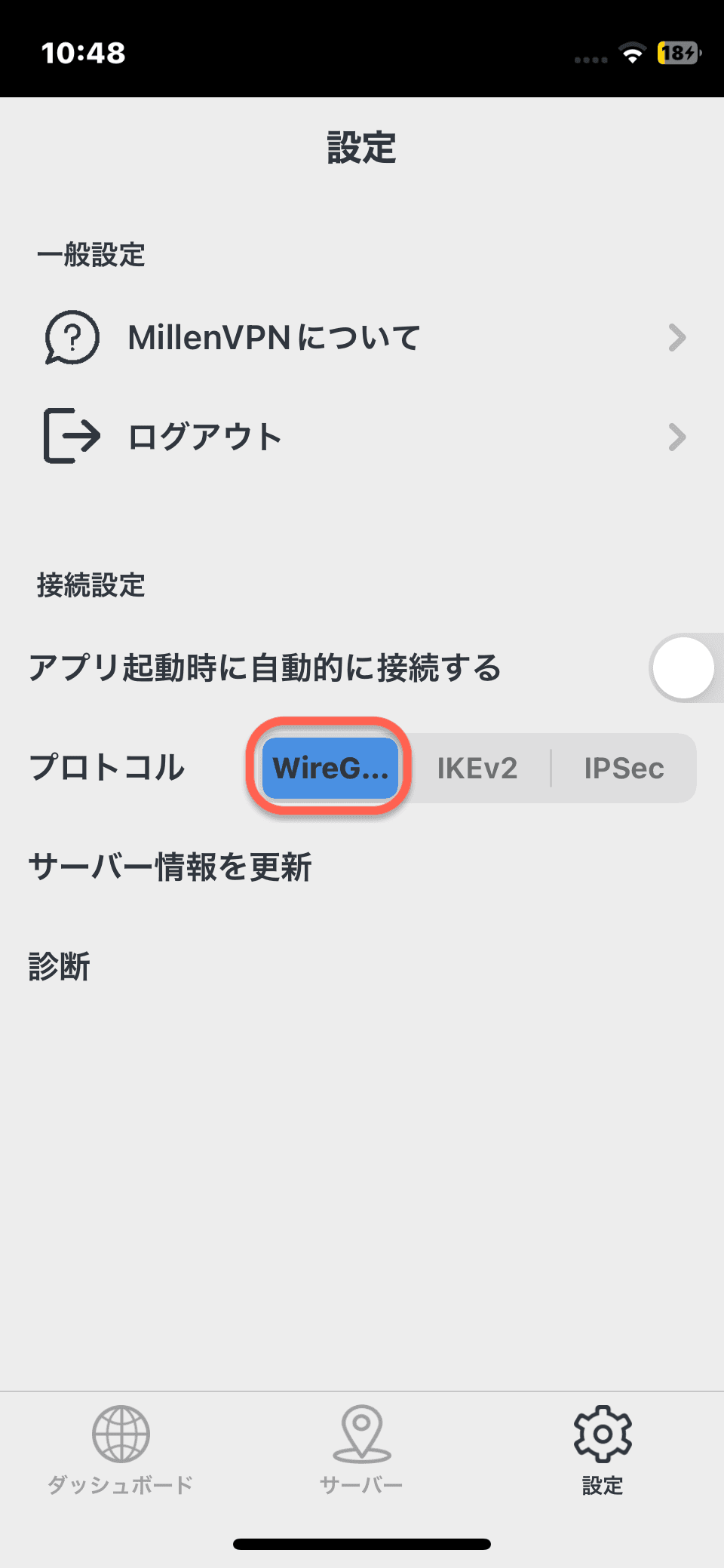
Select a protocol other than the VPN protocol that was initially selected.
(It turns blue when selected)
Example:
・If WireGuard was selected: Change to IKEv2 or IPSec
・If IKEv2 was selected: Change to WireGuard or IPSec
・If IPSec was selected: Change to WireGuard or IKEv2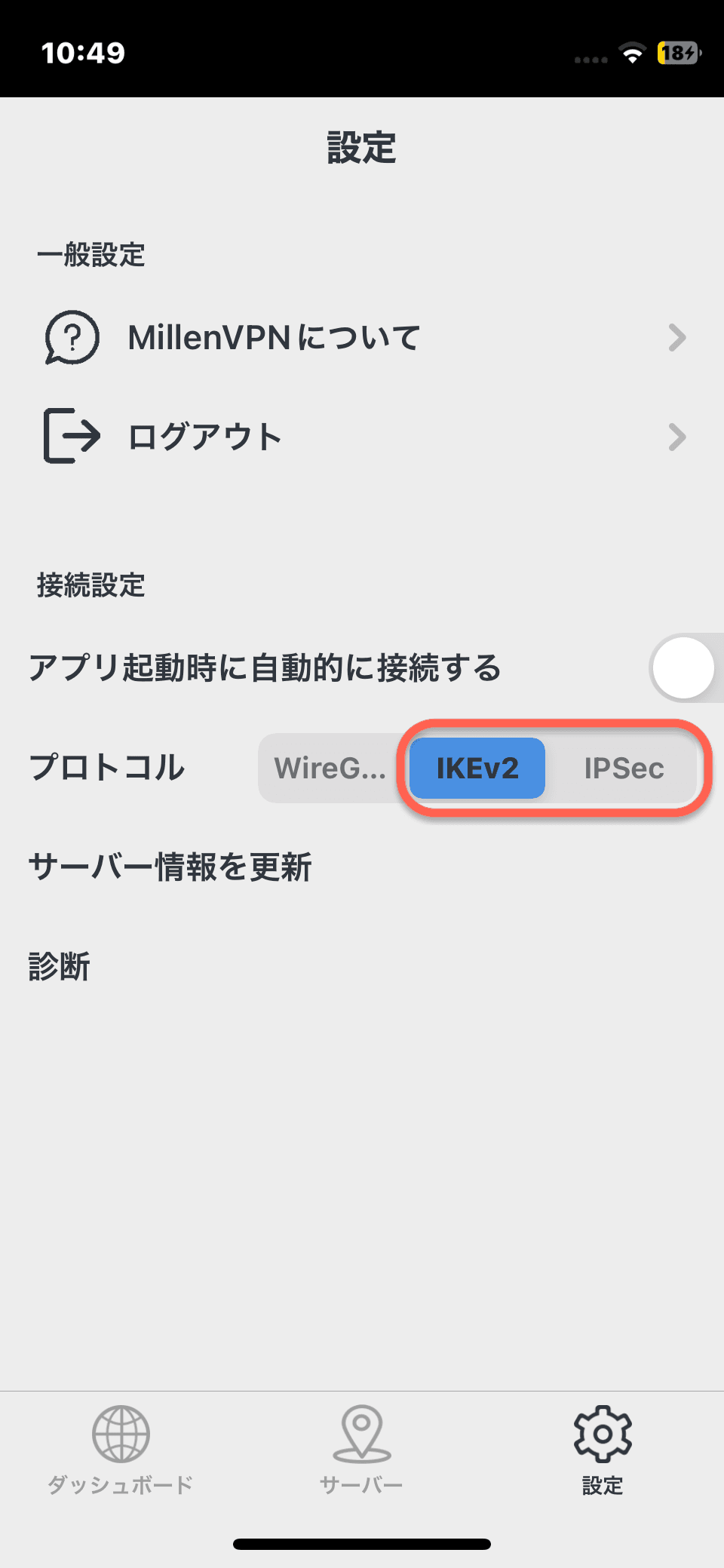
- Tap "Server," select any country, and try connecting to the VPN.

⑤ Deleting the VPN
- Please close the iOS version of MillenVPN.
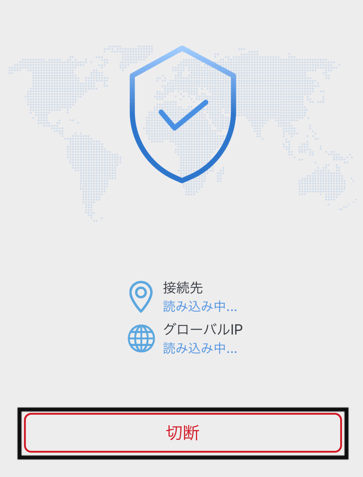
- Open the "Settings" app on your iOS device and tap General.

- Open "General" and tap "VPN".

- Tap the information icon (i) next to "MillenVPN IKev2 Configuration(※)" within "VPN".

- Please select "Delete VPN".

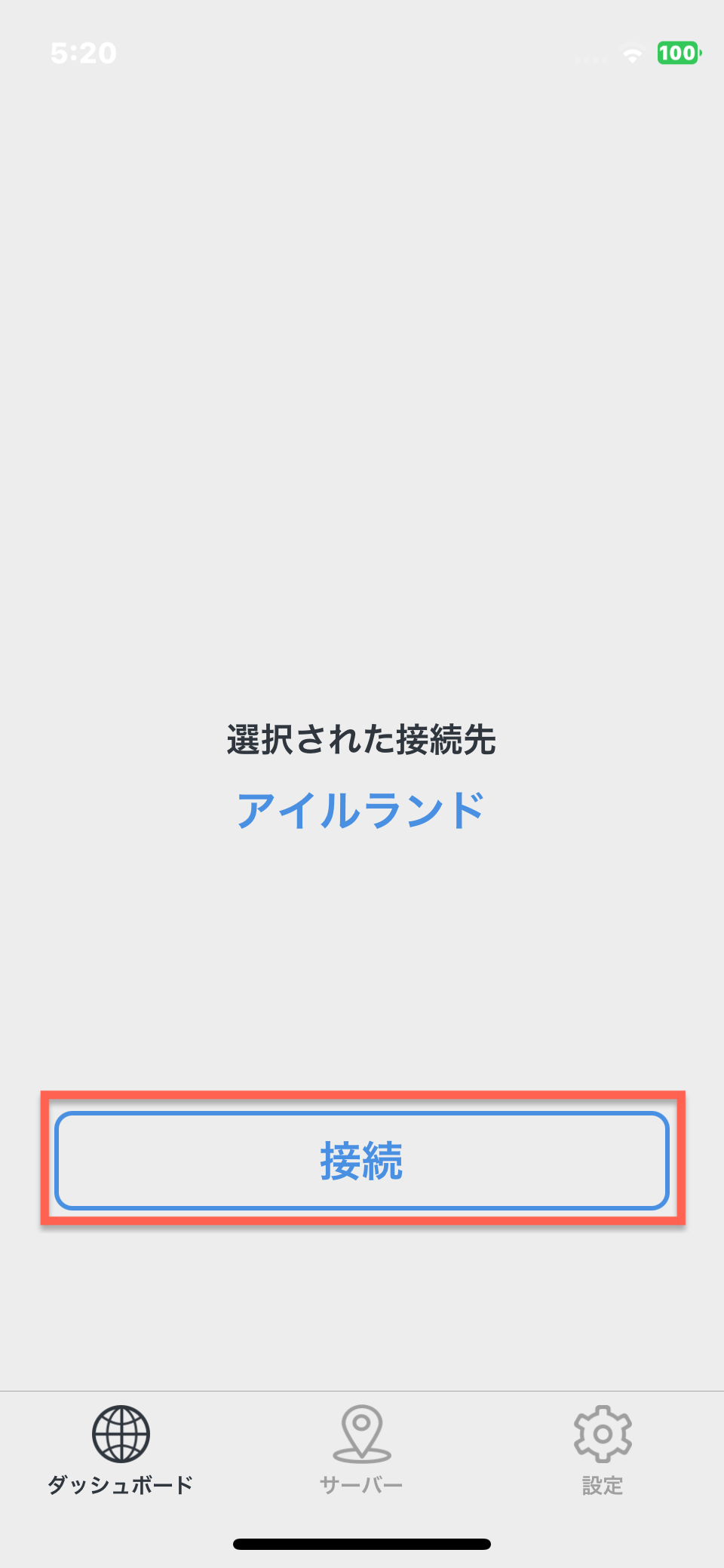
- Launch MillenVPN and tap the Connect button.
The MillenVPN app will reconfigure the VPN.
Please review the displayed content and press the "Allow" button.
⑥ Trying other connection methods
If you do not see any improvement after trying the steps in ① to ⑤ above, please refer to the page below to check whether you can connect using "MillenVPN Native" or "MillenVPN Native OpenConnect".
【Getting Started with MillenVPN Native】
https://support.millenvpn.jp/669
【How to Get Started with MillenVPN Native OpenConnect】
https://support.millenvpn.jp/853
If you see the message "To apply this change, you must disconnect from the VPN via the dashboard,"
The above error appears when you select a different server and change the connection destination while connected to a specific server.
You can change the connection destination using the following methods.
- Tap "Cancel" > "Dashboard" at the bottom of the screen.
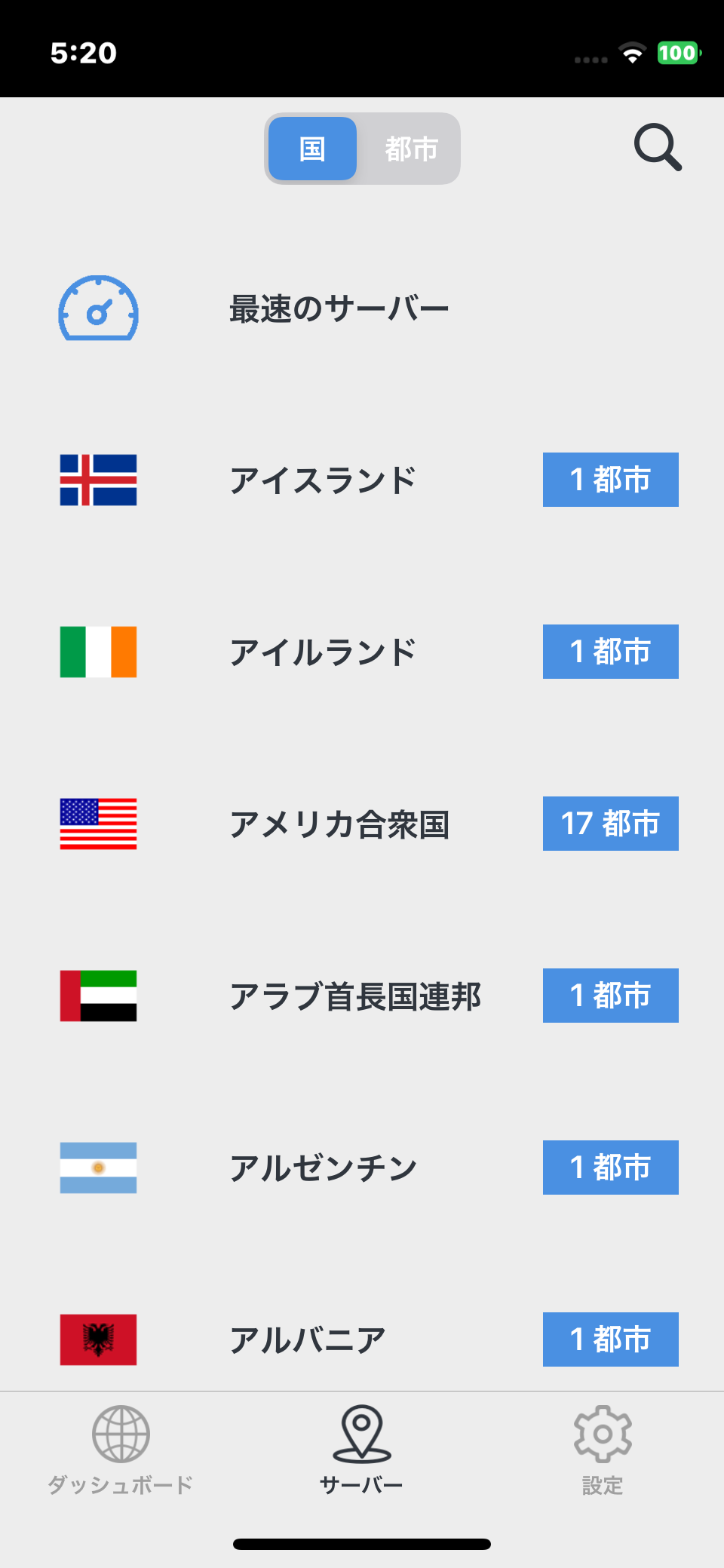
- Tap "Server" at the bottom of the screen.

- Select the destination.
- Tap "Connect" to connect to the server.
Procedure to Verify a VPN Connection is Active
▼Internet Speed Test
https://millenvpn.jp/speedtest/
You can check your current global IP address at the URL above.
If the "Current IP" displayed by MillenVPN matches the IP address shown on the site, your VPN connection is working properly.
※Even if the fourth octet (the number following the final ".") differs, the VPN connection is functioning normally.

