
How to Use the MillenVPN Dedicated Server OpenConnect on macOS
Verifying Connection Information for MillenVPN Dedicated Servers
Log in to My Pageand within the valid service "MillenVPN ○○○○ Connection InformationClick "".
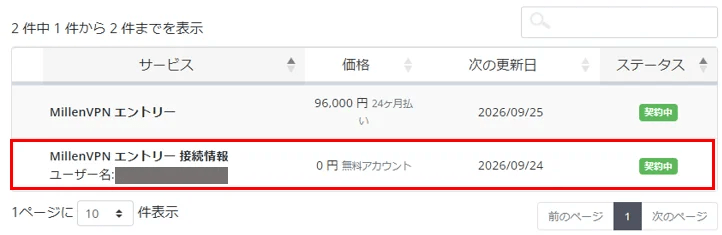
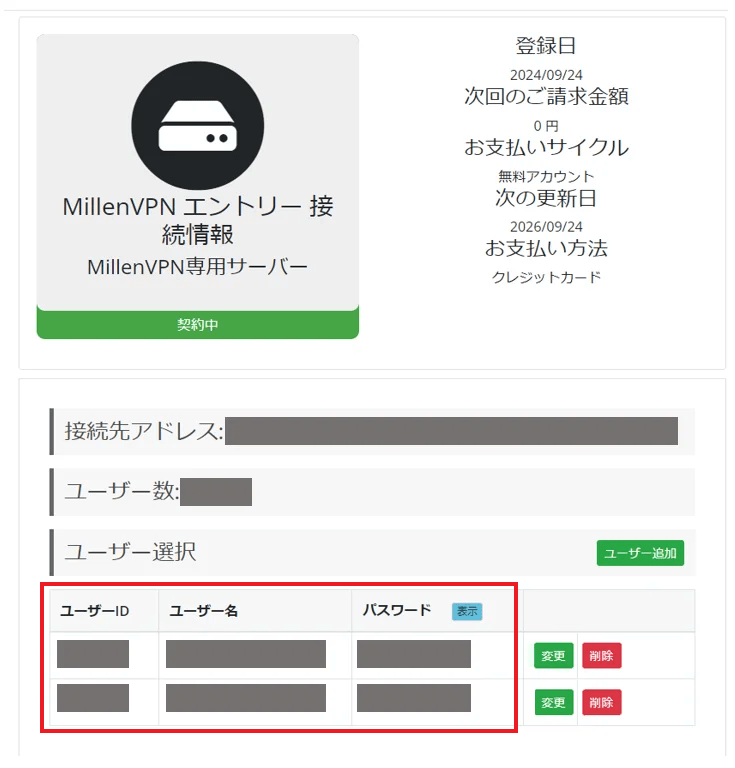
You can check the connected account and the destination address.
※Please note that the password for MillenVPN and MillenVPN Native is different.
How to Set Up macOS
To use the MillenVPN dedicated server OpenConnect, software installation is required.
This procedure allows you to start using MillenVPN Dedicated Server OpenConnect on macOS.
1. Download the client from the link below.
OpenConnect-GUI (macOS version)
2. Double-click the downloaded file to extract it.

3. Open the "OpenConnect-GUI.app" file inside the extracted folder.Right-clickThen click "Open."
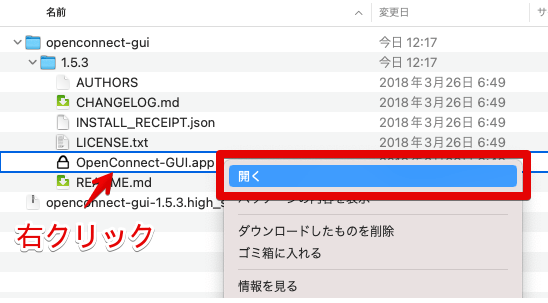
4. A confirmation screen will appear; click "Open."

5. Enter your macOS username and password, then click "OK".

6. The OpenConnect GUI will launch. Click the gear icon, then click "New profile (advanced)".

7. The New Profile screen will appear. Enter the information below and click "Save & Connect".
| Name | Enter your preferred name (e.g., MillenVPN) |
| Gateway | Enter the server address to connect to ▼How to Check the Server Address 1) Log in to My Page https://accounts.millenvpn.jp/clientarea.php 2) Click on the service 3)MillenVPN ○○○○ Connection InformationClick 4) Within the page opened in 3)MillenVPN ○○○○ Connection Informationwill be displayed in the "Destination Address" field. ※ Please note that this differs from the connection server address for MillenVPN Native OpenConnect. |
| Username | Enter your username ▼How to Check Your Username 1) Log in to My Page https://accounts.millenvpn.jp/clientarea.php 2) Click on the service 3) MillenVPN ○○○○ Connection InformationClick 4) On the page opened in 3), the "MillenVPN ○○○○ Connection Informationwill be displayed. |
| Batch mode | Check ON |

8. Click "Connect" to connect to MillenVPN Native OpenConnect.

9. The first time you connect, a permission screen will appear. Click "Accurate information."

10. Enter the password. Enter the "Connection Password" you confirmed on My Page.
▼How to Verify Your Password
1) Log in to My Page
https://accounts.millenvpn.jp/clientarea.php
2) Click on the service
3) MillenVPN ○○○○ Connection InformationClick
4) On the page opened in 3), the "MillenVPN ○○○○ Connection Informationwill be displayed.
※ Please note that this password is different from the one used for the MillenVPN app, MillenVPN Native, or OpenConnect.
※ The password for the MillenVPN dedicated server is,Change from My PageIt is also possible to receive it.

11. Connection complete.

12. From next time on, launch "OpenConnect-GUI.app" and click "Connect" to connect to MillenVPN Native OpenConnect.
