
How to Set Up Two-Step Verification for Your My Page
Here's how to set up two-step verification for your My Page.
・Enable Method
・Deactivation Method
If you are unable to log in to My Page through 2-step verification due to a malfunction of your smartphone or if you do not receive an email with a one-time password, we apologize for the inconvenience,SupportPlease contact us by [date].
How to Enable Two-Step Verification
STEP 1: Log in to My Page
My PageLog in.
STEP 2: Open Security Settings
Log in to My Page, then click "Security Settings" from the "My Menu" section.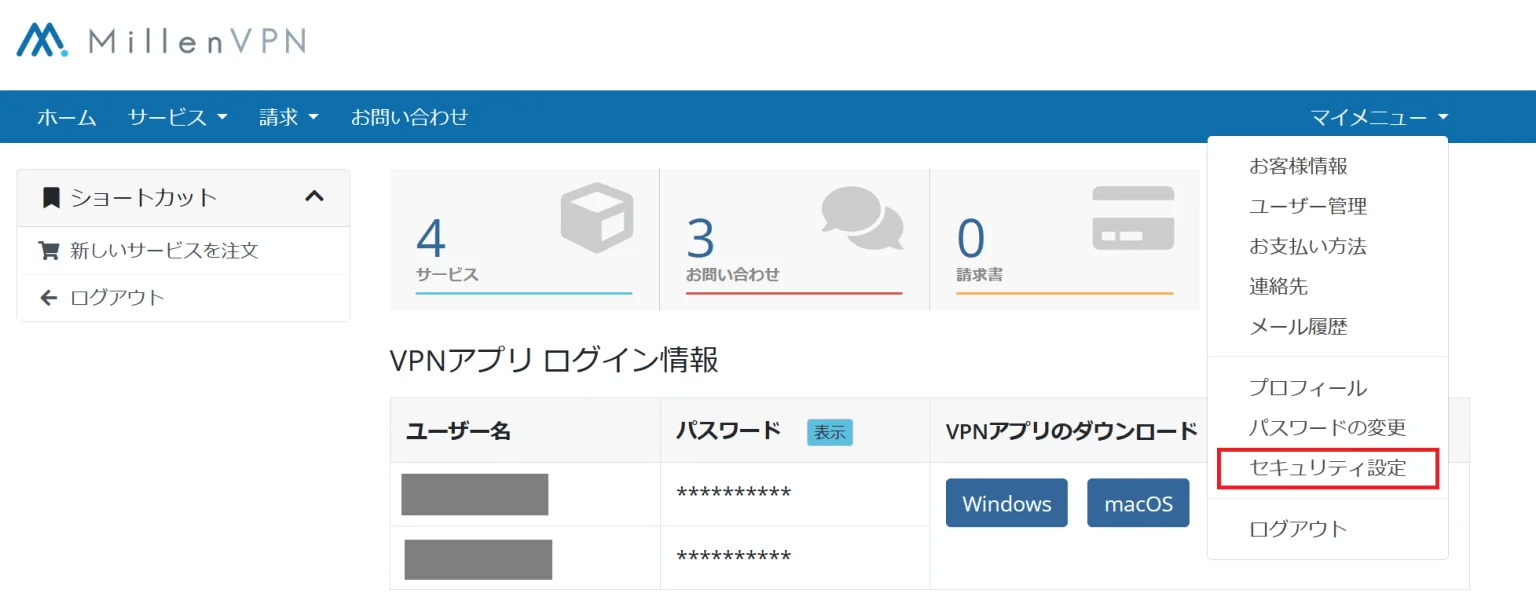
STEP 3: Enable Two-Step Verification
Click "Click to activate".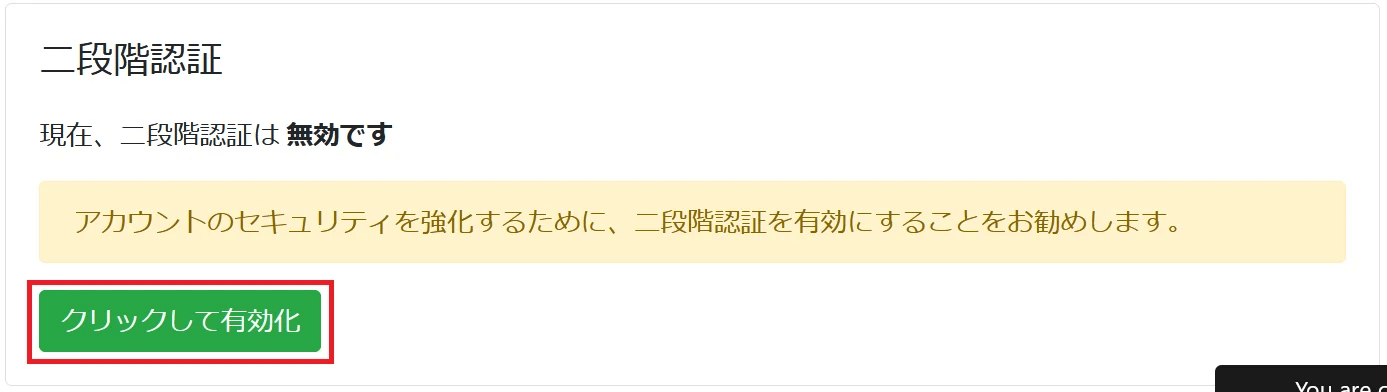
STEP 4: Select an authentication method
When performing authentication using an app, select "Time-Based Tokens".
Select "Time-Based Tokens" and choose "Get Started."

When using email for authentication, select "Email Two-Step Verification."
Select "Email Two-Step Verification" and choose "Get Started."

STEP 5: Verify the Authentication Code
〜When setting up in the authentication app〜
Scan the displayed QR code.Google AuthenticatorやDuoScan using an authentication app such as [App Name], enter the 6-digit authentication code displayed in the app, and select "Send."
※For authentication apps that are not supported, the authentication code may not be displayed.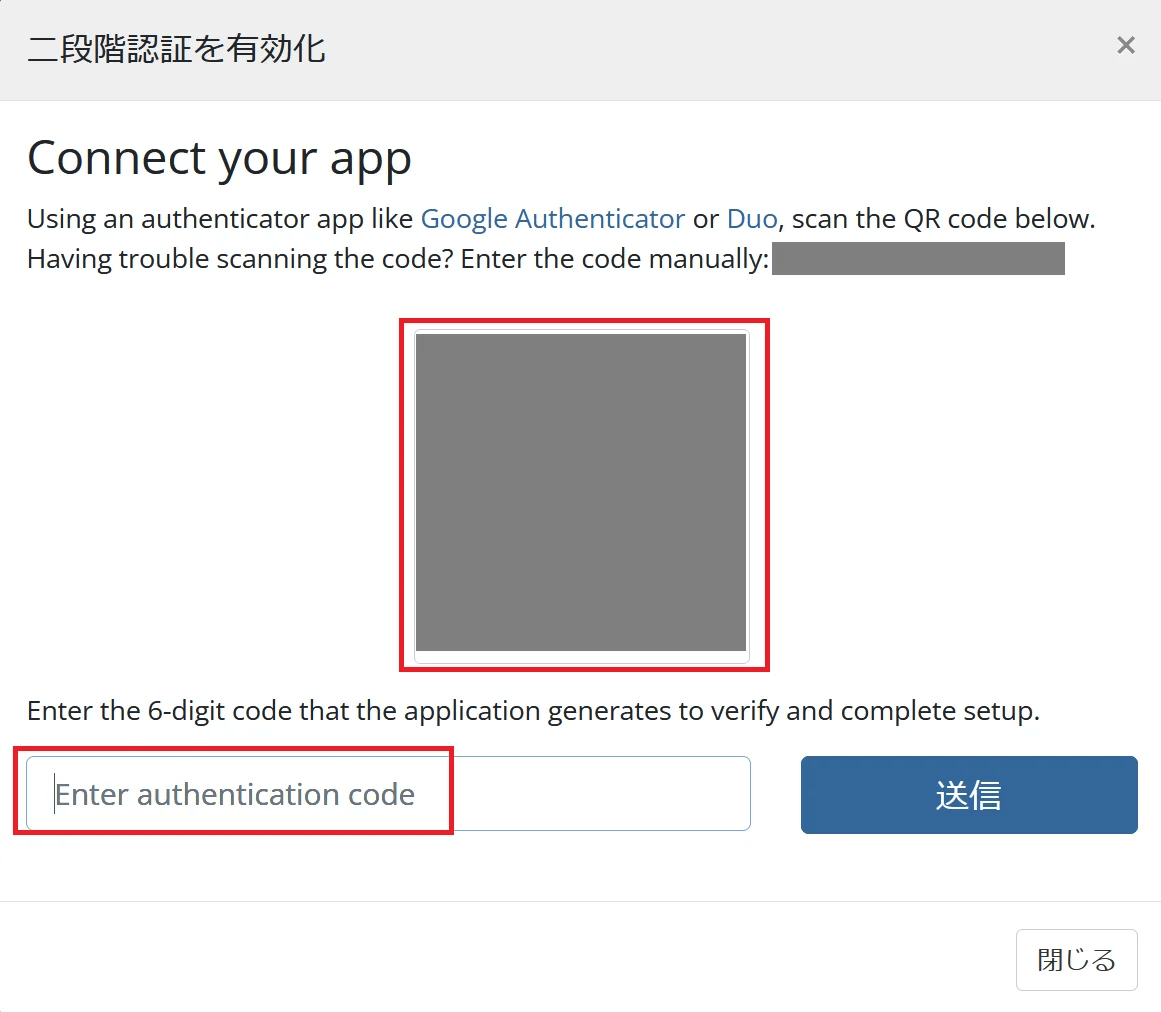
〜When setting up email-based authentication〜
Subject: 【MillenVPN】Two-Factor Authentication
From: MillenVPN [email protected]
You will receive an email with the subject line and sender listed above. Please enter the 8-digit verification code provided in the email and click "Verify."

STEP 6: Save Your Backup Codes
Save the backup codes displayed when two-step verification is enabled.
※Backup codes are required if two-step verification cannot be completed.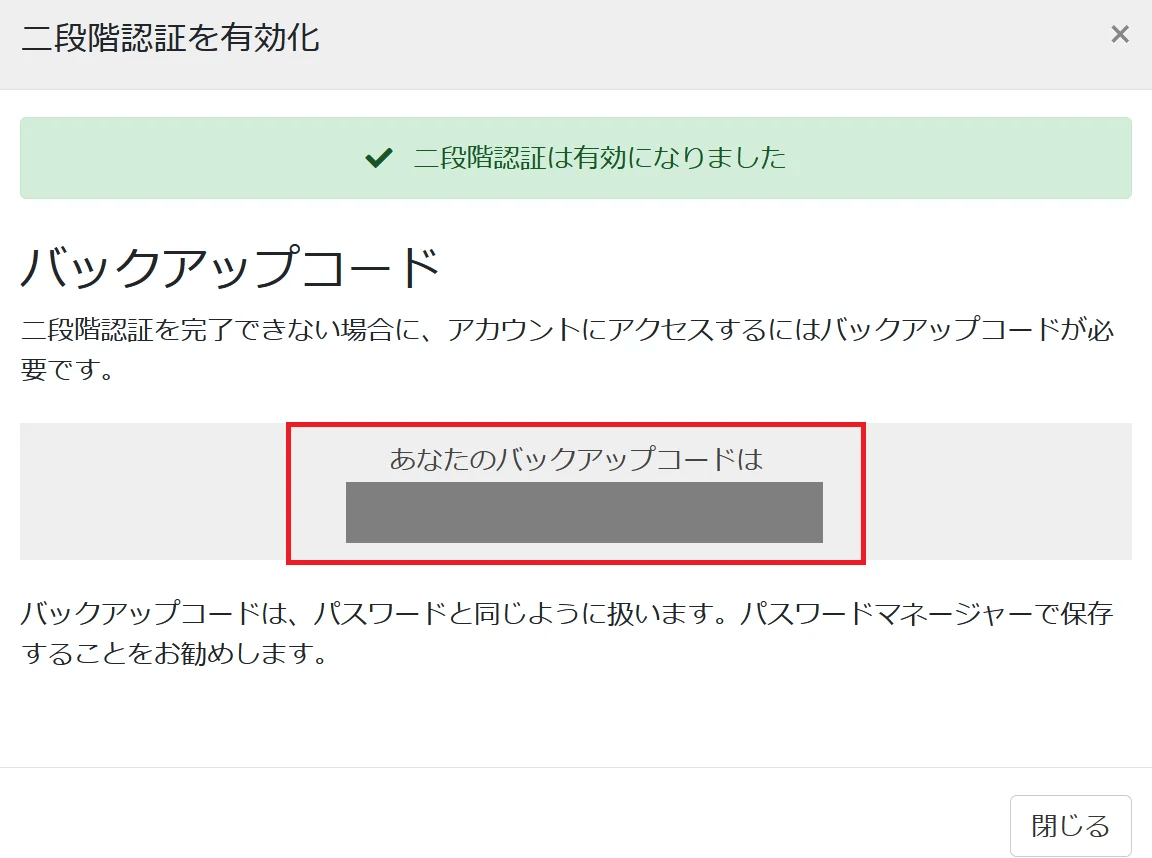
STEP 7: Enter the verification code
Two-step verification will be enabled when logging into your My Page. Please enter the 6-digit verification code displayed in the app.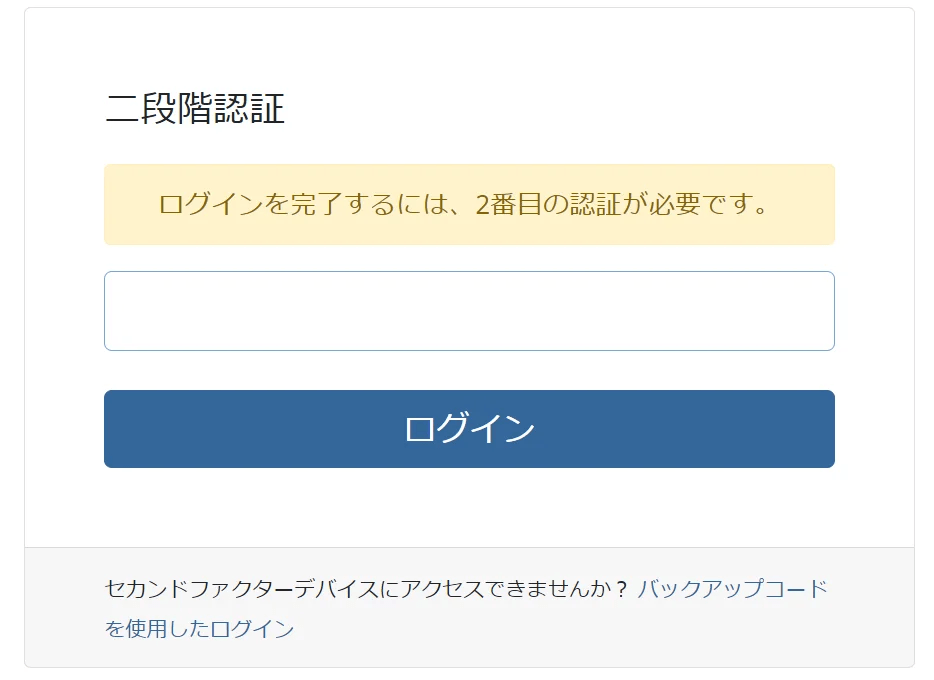
How to enable two-step verification for both the app and email
We sincerely apologize, but it is not possible to enable both at the same time.
You may use either app-based authentication or email-based authentication, but only one of these methods.
How to switch two-step verification from the app to email or from email to the app
We apologize for the inconvenience, but please disable two-step verification and then set it up again from the beginning.
How to Disable Two-Step Verification
STEP 1: Log in to My Page
My PageLog in.
STEP 2: Open Security Settings
Log in to My Page, then click "Security Settings" from the "My Menu" section.
STEP 3: Select "Click to Disable"
Click "Click to disable."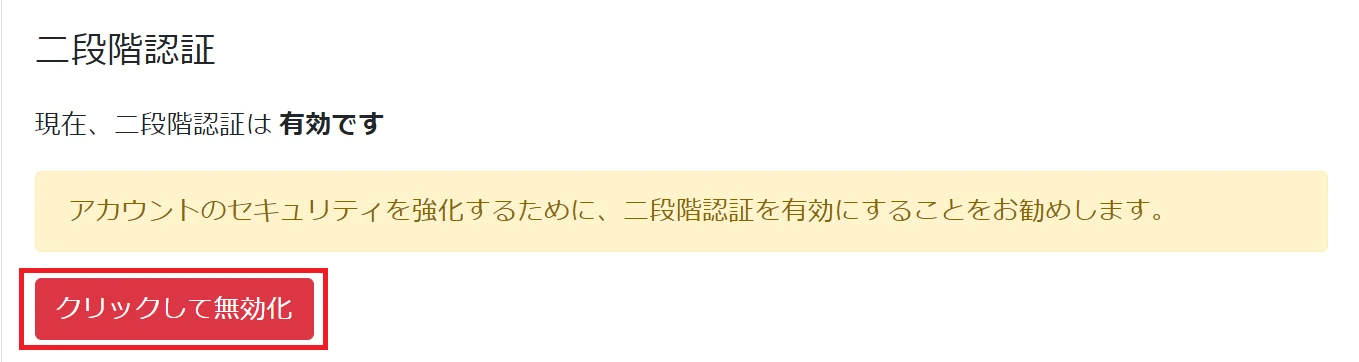
STEP 4: Password Confirmation
Enter your My Page password and click "Disable Two-Step Verification."
※The password you enter here is the password used to log in to your My Page.